Computer Station Nation is reader-supported.
When you buy through links on our site, we may earn an affiliate commission. Learn more.
Budget-Friendly Streaming Setups at a Glance
What you need to start streaming on a budget: A decent computer, a USB microphone, a 1080p webcam, basic lighting, closed-back headphones, and free streaming software — OBS Studio. Total investment: $200-$500 depending on what you already own. Audio quality matters more than video, and lighting matters more than camera resolution. Start with what you have, upgrade based on what your stream actually needs, not what gear reviews tell you to buy.
Bottom line: You can build a clean, professional-looking streaming setup for under $500 that will compete with channels that spent thousands. The gear matters less than consistency, energy, and community engagement.
Introduction
There’s a persistent myth in the streaming world that you need thousands of dollars in gear to go live. A $2,000 camera, $600 microphone, $300 stream deck, and a custom-built PC pushing a dual-PC setup — that’s the image most tutorials paint.
The reality? Some of the fastest-growing streamers on Twitch, YouTube, and Kick started with a simple USB microphone, a $70 webcam, a $50 LED light, and free software. The gear doesn’t make the streamer — your personality, consistency, and connection with viewers do.
This guide covers exactly what you need to start streaming on a budget, how to prioritize your spending (because not all gear is equal), and what to upgrade first when you’re ready to level up. Whether your budget is $200 or $500, you’ll leave with a clear shopping list and zero regrets. For an even more economical starting point, check out Budget-Friendly Streaming Setups: How to Start for Under $100 and our Complete Guide to Building Your Stream on a Budget in 2026.
What You Actually Need to Start Streaming
Let’s cut through the noise. Here are the five pieces of gear that matter, ranked by their impact on stream quality:
- 1. Microphone (30% of budget) — Bad audio is the #1 reason viewers leave. A $100 USB mic sounds pro. Gaming headset mics are noticeably worse than a dedicated mic at the same price. See our ranking of the Best Budget Microphones for Streaming (Under $50): Ranked for specific recommendations.
- 2. Lighting (15% of budget) — A $50 key light transforms a $70 webcam into something that looks like a $200 camera. Lighting is the single highest visual ROI upgrade you can make. Check out our Affordable Lighting Solutions for Streamers (Under $60) guide for top picks.
- 3. Webcam (20% of budget) — A 1080p webcam with decent autofocus is fine. Viewers want to see your face, but they don’t need 4K. With good lighting, even a $60 webcam looks great.
- 4. Headphones (15% of budget) — Closed-back headphones prevent game audio from bleeding into your mic. Also helps you monitor your stream audio mix in real time.
- 5. Boom Arm / Accessories (10% of budget) — Getting the mic off your desk and positioned near your mouth dramatically improves audio clarity. Also reduces keyboard and mouse noise pickup.
Software: OBS Studio (Free) — OBS is open-source, free, and what 90%+ of streamers use. It supports game capture, scene switching, overlays, and streaming to every major platform. No subscription, no watermark, no limits.
The $280 Core Setup (Starter Kit)
Here’s a complete streaming setup that covers all five categories for around $280. This gives you professional-quality audio and video that will keep viewers watching:
| Category | Recommendation | Estimated Price |
|---|---|---|
| 🎙️ Microphone | USB condenser mic (e.g., Rode NT-USB Mini) | ~$100 |
| 📷 Webcam | 1080p webcam (e.g., Logitech C920x) | ~$60 |
| 💡 Key Light | LED panel light with adjustable temp (e.g., Logitech Litra Glow) | ~$50 |
| 🎧 Headphones | Closed-back gaming headset | ~$35 |
| 🦾 Boom Arm | Adjustable scissor arm stand | ~$25 |
| 🖥️ Software | OBS Studio | Free |
| Total | ~$270 |
This is the baseline that guarantees clean, professional-looking audio and video. If you already own a decent computer, this is everything you need to go live tonight.
Streaming from a Console? You’ll Need a Capture Card
If you’re streaming from a PS5, Xbox Series X, or Nintendo Switch, you need one additional piece: a capture card. This device routes your console’s video signal through your PC so OBS can capture it. Expect to spend $130-$160 on a reliable card like the Elgato HD60 X, which handles 4K passthrough and 1080p60 capture with zero lag.
If you’re gaming and streaming from the same PC, you don’t need a capture card — OBS captures your game directly via Game Capture mode.
Recommended Products
Here are some budget-friendly streaming products available now. These complement the core setup above and cover specific scenarios — from podcast bundles to streaming players for content delivery:
Podcast Equipment Bundle (Streaming + Recording)

This audio interface kit features one-touch intelligent noise reduction and Bluetooth wireless accompaniment, eliminating background noise and delivering pure, immersive sound. With versatile connectivity options, it seamlessly adapts to various devices for live streaming, singing, music...
1080p Streaming Device with Screen Mirroring
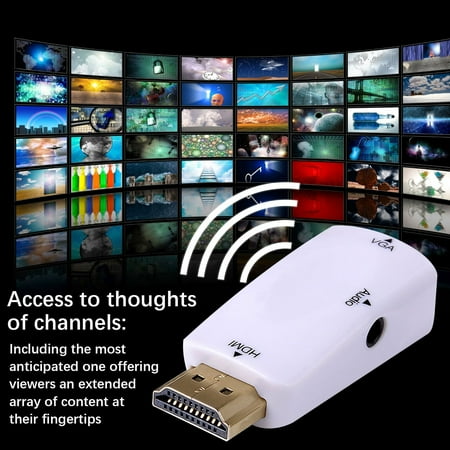
Welcome To Vxdvou Store (◕ᴗ◕✿) Wish you a pleasant shopping experience in Vxdvou Which is committed to providing high-quality home products and accessories. ☎24 Hours Online:If you have any questions, please feel free to contact the Vxdvou service team, we will solve it for you. Tv Streaming...
Roku Ultra LT — 4K/HDR Streaming Device
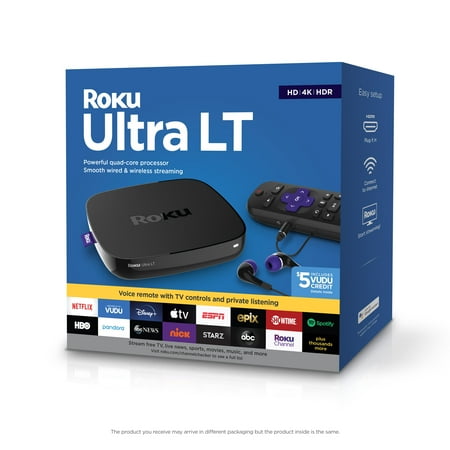
Roku Ultra LT is our 4K streaming player that packs a powerful quad-core processor for popular channels that launch in a snap. Enjoy a smooth streaming experience whether you are using Wi-Fi® or are plugged in for Ethernet. Control your player and TV with a voice remote that includes headphones...
What to Skip in a Budget Streaming Setup
When you’re on a budget, every dollar counts. Here’s what not to waste money on:
- Don’t overspend on your webcam — A $200 camera in a dark room looks worse than a $70 camera with a $50 light. Solve lighting first.
- Skip XLR microphones at this budget — XLR chains require an audio interface ($100+), cables, and potentially a Cloudlifter. Start with USB, upgrade to XLR later.
- Avoid RGB accessories as a priority — LED strips, RGB fans, and glowing desk pads are fun but don’t improve stream quality. Buy them after your core audio, video, and lighting are solid.
- Don’t buy a green screen (yet) — OBS has built-in background removal via Chroma Key that works well with a solid-colored wall. Physical green screens add setup time and take up space.
- Skip the Stream Deck — Elgato Stream Decks are $150+ and nice for productivity, but not essential. You can manage scene switching with hotkeys or a free alternative like the Stream Deck mobile app.
Smart Upgrade Path: What to Buy Next
Once you’ve been streaming for a few months and know your channel has momentum, here’s the order to upgrade in for maximum impact per dollar. For more creative ways to improve without spending, also check out our DIY Streaming Equipment Hacks: Upgrade Your Stream for Free:
- Lighting ($100-$200) — Upgrade to an Elgato Key Light or a two-light softbox kit. Lighting has the highest visual ROI of any upgrade.
- Microphone upgrade ($150-$400) — Move to a Shure MV7+ (USB/XLR hybrid) or go full XLR with a Shure SM7B + Cloudlifter + Focusrite interface.
- Webcam upgrade ($150-$200) — Jump to the Elgato Facecam MK.2 for 1080p60 or the Logitech Brio 4K for 4K capture and better low-light performance.
- Second monitor ($150-$300) — Essential for managing OBS, chat, and alerts while gaming on your primary screen.
- Stream Deck ($150) — Adds one-touch scene switching, sound effects, and ad triggers. Nice-to-have, not need-to-have.
OBS Settings for Budget Setups
OBS Studio is free but needs proper configuration. For budget builds, the key settings are:
- Encoder: Use hardware encoding (NVENC for NVIDIA GPUs, AMF for AMD). Hardware encoding offloads video compression to your GPU, saving CPU for your game.
- Bitrate: 2500-3500 Kbps for 720p60, 4500-6000 Kbps for 1080p60. Lower bitrates if viewers buffer.
- Resolution: Start at 720p60 if you have a single-PC setup. It looks cleaner than 1080p30 that stutters.
- Audio sample rate: 48 kHz, 160 Kbps bitrate. This matches what streaming platforms accept natively.
Is Streaming on a Budget Worth It?
Yes — absolutely. A $500 streaming setup produces professional-quality audio and video. The gear you own has almost no correlation with streaming success compared to consistency (streaming on a regular schedule), engagement (talking to chat, making viewers feel welcome), and content quality (entertaining or informative streams).
If you have $200-$500 and a willingness to learn OBS, you can start streaming tonight. Upgrade later based on problems you actually encounter, not hypothetical ones gear reviews sell you.
Who should buy a budget setup: New streamers, casual streamers, anyone who wants to test whether streaming is for them without a major financial commitment.
Who should skip and save up: Streamers who already know they want to go full-time and would rather buy once than buy twice. If you have the budget and certainty, a $1,000+ setup saves upgrade cycles. But never delay starting because you don’t have the “perfect” gear. For a deeper look at the value proposition, read our comparison of Budget vs. High-End Streaming Gear: Is It Worth Spending More?
Frequently Asked Questions
Can I start streaming with just my computer and no extra gear?
Yes. OBS can capture your screen, your built-in webcam, and your built-in microphone. You can start streaming today with zero cost. The upgrades come when you want better audio and video quality.
Do I need a gaming PC to stream?
Not necessarily. You can stream from a console with a capture card, or stream from a mid-range PC using hardware encoding. Even older PCs can handle 720p streaming if they have a dedicated GPU from the last 5-6 years.
What’s the single most important purchase for a budget streamer?
A USB microphone. Bad audio drives viewers away faster than any other technical flaw. The difference between a headset mic and a $100 USB condenser is night and day.
Should I stream at 720p or 1080p?
720p60 with a clean bitrate looks better on stream than 1080p30 that stutters or pixelates. Start at 720p60 with 3500 Kbps. Only go to 1080p once you have the CPU/GPU headroom and enough bitrate (4500-6000 Kbps).
Is wireless audio OK for streaming?
Wireless headphones for listening are fine, but avoid wireless microphones at this budget — they introduce latency, battery anxiety, and often sound worse than wired USB mics at the same price.
Do I need a second monitor to stream?
No, but it helps enormously. Without a second monitor, you’ll need to alt-tab between your game and OBS/chat. Many streamers start with one monitor and add a second as their first upgrade.
Where to Buy
You can find budget streaming gear at Walmart, Amazon, and Best Buy. The products linked above are available now — check current pricing and availability before purchasing.
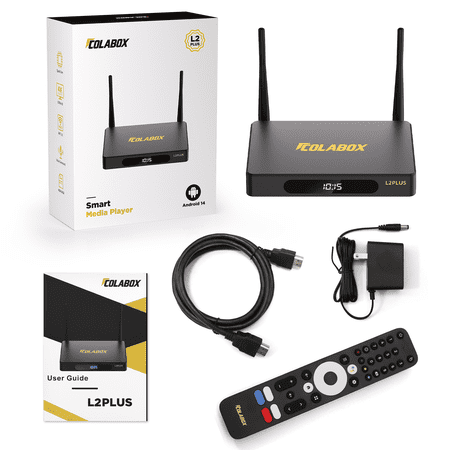
The COLABOX L2 Plus media player is an excellent choice for enhancing your home entertainment experience, specifically designed to fulfill your various audio and video requirements. It features a straightforward and user-friendly operation interface, making it simple for individuals of all ages...
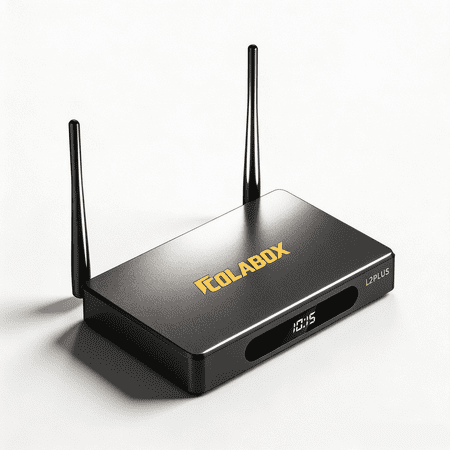
COLABOX L2 Plus, with Voice Remote, HDMI Cable, Power Cord, and User Manual, 2026 Version Streaming Player
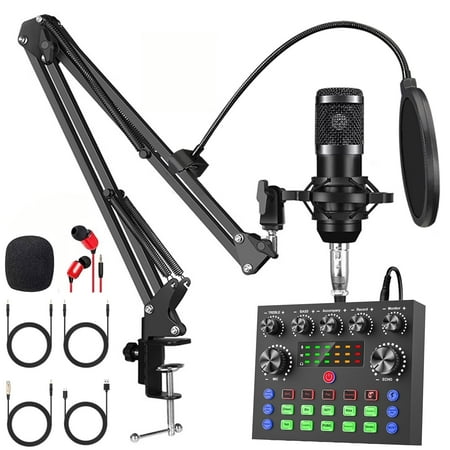
The Podcast Equipment Bundle is an all-in-one recording studio package designed for creators who want professional sound quality with simple setup. This set includes a BM-800 condenser microphone for clear and detailed audio capture, along with a V8s voice changer and live sound card audio...