How to Optimize Your Computer Speaker Setup for Better Sound (2026)
Computer Station Nation is reader-supported.
When you buy through links on our site, we may earn an affiliate commission. Learn more.
Short version: Bad speaker placement and neglected Windows audio settings are the two biggest reasons desktop speakers sound mediocre. Fixing them costs nothing and transforms your listening experience — clearer vocals, tighter bass, and a wider soundstage. Here’s how.
Why Your Computer Speakers Sound Worse Than They Should
Most people plug in new speakers, turn up the volume, and accept whatever sound comes out. If you’ve ever thought “these speakers sounded better in the store” or “why does everything sound muddy,” the problem is almost never the speakers themselves. It’s how they’re set up.
Desktop speakers are nearfield monitors by default — designed to sound best at 2–4 feet. But the typical desk creates a nightmare acoustic environment: hard reflective surfaces, tight corners, and the listener pressed against a wall. A few targeted changes — placement, software tweaks, and basic acoustic treatment — can fix all of it without spending a dime on new hardware. For a quick step-by-step walkthrough, check out our How to Optimize Your Computer Speaker Setup for Better Sound guide.
1. Master Speaker Placement
Speaker placement is the single biggest factor in perceived sound quality. A $50 pair of speakers placed correctly will outperform a $200 pair placed poorly. These rules apply whether you’re using budget USB speakers or high-end bookshelf monitors.
The Equilateral Triangle Rule
Your left and right speakers and your head should form an equilateral triangle. The distance between the two speakers should equal the distance from each speaker to your ears. For a standard 24–27 inch monitor setup, this puts speakers roughly 24–30 inches apart, aimed directly at your listening position. This gives you proper stereo imaging — instruments and sounds appear in their correct left-right position instead of collapsing into mono.
Measure the distance between your speakers, then from each speaker to your ears. If those numbers are significantly different, you’re losing the stereo image.
Toe-In Angle (30 Degrees Is the Sweet Spot)
Speakers aimed straight ahead fire sound past your ears, bouncing off the wall behind you before it reaches you. Angle each speaker inward so the tweeter points at your ears — about 30 degrees of toe-in is the standard starting point. More toe-in gives a tighter, more focused center image (great for vocal-heavy content). Less toe-in widens the soundstage (better for ambient music and gaming). Try both and pick what sounds best for your content.
Tweeter Height = Ear Height
High frequencies are directional. If your tweeters are above or below ear level, you lose detail and clarity. The fix: use foam wedge isolation pads (they tilt the speakers up or down by about 15 degrees). If your speakers sit on tall shelves above your monitor, consider lowering them or tilting them downward. If they’re on the desk pointing up at you, add risers or pads to bring them to ear level.
Isolation pads cost $10–20 and do double duty: they fix tweeter height and decouple the speakers from the desk, reducing vibration that muddies low frequencies.
Distance From Walls
Speakers close to a wall (within 6 inches) experience boundary bass reinforcement — low frequencies reflect off the wall and add 3–6 dB of boominess. If your speakers sound muddy or boomy, pull them forward. Even moving them 4–6 inches forward cleans up the low end noticeably. If you physically can’t move them (built-in desk shelf), turn down the bass EQ or use your speaker’s bass control.
Subwoofer Placement
Bass below 80 Hz is mostly non-directional — your ears can’t tell where it’s coming from. That gives you flexibility. Common subwoofer positions for desktop setups:
- Under the desk — most common. Keeps it out of the way. Tilt it slightly toward you if possible.
- Beside the desk — second best. Same acoustic benefit, easier access to the power switch.
- In a corner — boosts bass output (wall reinforcement) but can overwhelm small rooms. Start here only if you want maximum bass and can EQ it down.
There’s a trick called the subwoofer crawl: put the sub at your listening position, crawl around the room, and listen for where bass sounds fullest. That’s where the sub goes.
2. Optimize Windows Audio Settings
Windows audio defaults are set for compatibility, not quality. Changing a few settings improves clarity and dynamic range immediately.
Set the Highest Bit Depth and Sample Rate
Right-click the speaker icon → Sound → Playback tab → select your speakers → Properties → Advanced. Under “Default Format,” choose the highest option your speakers support (usually 24 bit, 48000 Hz for most desktop speakers; 24 bit, 96000 Hz or higher if your DAC supports it). Higher bit depth means more dynamic range — quieter sounds stay audible, louder sounds don’t clip.
A common myth: “24-bit audio is wasted on cheap speakers.” The DAC in your computer (even on a budget motherboard) handles 24-bit signals perfectly. The difference is subtle but real — you’ll notice cleaner highs and less digital harshness.
Disable Audio Enhancements
In the same Properties → Enhancements tab, check “Disable all enhancements.” Windows “Loudness Equalization,” “Virtual Surround,” and “Room Correction” features are designed for laptop speakers — they compress dynamic range and add processing artifacts that make desktop speakers sound worse. Disable them all for a clean signal path.
Turn Off Spatial Sound (Unless You Have Atmos)
Windows Sonic for Headphones and Dolby Atmos for Headphones are designed for headphones, not speakers. If they’re enabled on your speaker output, they’re introducing crossfeed processing that smears the stereo image. Set Spatial sound to “Off” for your speaker device.
Use the Built-In Equalizer or an App
Windows doesn’t have a native system-wide EQ (some audio drivers include one), but third-party options are excellent:
- Equalizer APO (free, open source) — system-wide parametric EQ. The gold standard for PC audio tuning.
- Peace Equalizer (free) — graphical interface for Equalizer APO. Easy to create and switch between profiles.
- Fxsound (free tier) — simpler interface, good for beginners who want presets.
A good starting EQ curve for desktop speakers: slight bass boost at 60–80 Hz (+2 dB), flat through mids (200–2000 Hz), gentle presence boost at 3–5 kHz (+1–2 dB) for vocal clarity, and a roll-off above 12 kHz to reduce sibilance if your tweeters are harsh.
3. Acoustic Treatment on a Budget
You don’t need foam panels or professional treatment. The two biggest problems, early reflections and desk resonance, both have cheap fixes.
Declutter Your Desk Surface
Every hard surface between your speakers and your ears reflects sound. A clear desk (fewer monitors, less clutter) means fewer reflections and a cleaner signal reaching your ears. If you have multiple monitors, position your speakers so they’re not firing directly at the bezel edges — those cause diffraction.
Speaker Isolation Pads
Foam or rubber pads under your speakers decouple them from the desk. Without isolation, the desk itself vibrates and acts as a secondary speaker — adding muddy, uncontrolled low-end. Isolation pads are the single best $15 upgrade you can make. They also angle the speakers for proper tweeter height.
Soft Surfaces in the Room
A rug on hardwood floors, curtains on nearby windows, or a fabric panel behind your monitor all reduce reverb and flutter echo. You don’t need studio-grade treatment — even a thick desk mat helps. The goal is to reduce the “echo-y” quality that makes small rooms sound like bathrooms.
4. Cable and Connection Best Practices
Bad cables introduce hum, static, and signal degradation. Stick to these rules:
- Analog (3.5mm AUX): Keep cable runs under 6 feet to avoid interference. Route cables away from power bricks and monitor power cables.
- USB speakers: Use the ports on your motherboard’s rear I/O, not the front panel. Front panel USB ports often share a single internal header and introduce noise.
- Optical (TOSLINK): Best for 2.0 setups — fully isolates the signal from electrical noise. If your speakers or DAC support optical input, use it.
- Bluetooth: Use aptX or LDAC codecs if your speakers support them. Standard SBC Bluetooth compresses audio noticeably — it’s fine for podcasts but not music listening.
5. Recommended Speakers That Sound Best When Optimized
Some speakers respond better to optimization than others. Here are the ones that benefit most from good placement:
Best Budget Pick — Logitech S150 USB Speakers
$17.84 — These tiny USB-powered speakers punch way above their weight once you dial in the placement. Get the tweeters at ear height and add isolation pads — the difference is immediate.
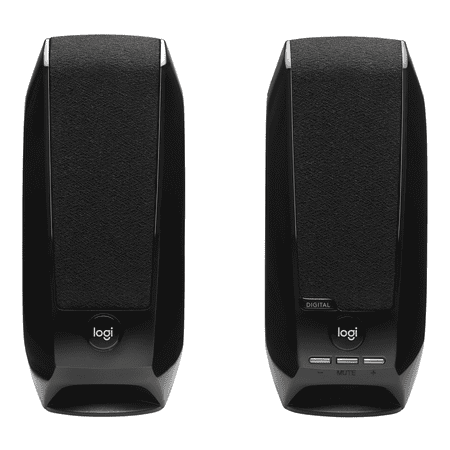
Questions about your S150 Digital USB Speaker System? We've got the answers, videos, downloads and information you need. Search for articles or select a topic below to get started.
Best Value Desktop — LENRUE USB/USB-C Computer Speakers
$23.74 — USB-C powered with a headphone jack, these speakers have better driver extension than most budget options. Following the placement guide above (equilateral triangle, 30° toe-in) opens up their soundstage considerably. The headphone-in port is a nice bonus for late-night listening.
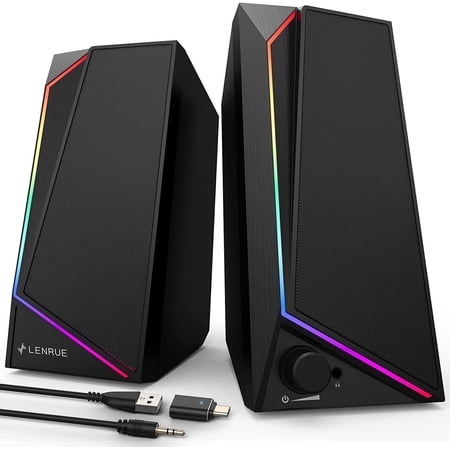
360° Stereo Sound: Super cost-effective stereo sound quality, 5×2W drivers and noise-free technology, get louder and clearer! Colorful Lights Show: Cool breathing light, colorful lights change constantly to increase the sense of atmosphere. Equipped with an independent light button, one key to...
Best Stereo with Bass Control — onn AC Powered Computer Speakers
$24.36 — AC-powered with dedicated volume and bass controls, these let you dial in the exact sound for your room. Push them 4–6 inches from the wall, set the bass control to about 40%, and adjust up as needed. The separate bass knob gives you more flexibility to correct for boundary bass issues without EQ software.
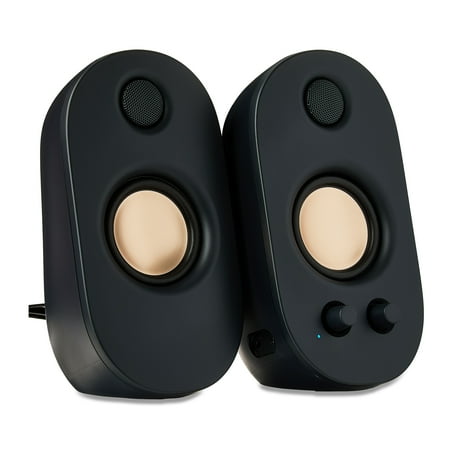
The onn Powered Stereo Speakers are a great option for anyone looking to enhance their audio experience. These speakers feature a 3.5mm AUX input, allowing you to connect your devices and enjoy high-quality sound. You can customize your listening experience with the volume and bass controls, and...
Best RGB Desktop — Bluetooth Computer Speakers with LED
$24.99 — Soundbar-style with Bluetooth connectivity and RGB LED control. The wider driver array benefits from proper toe-in more than most — without it, the left and right channels blend and you lose stereo separation. With correct placement, the LED-lit design and 3.0 stereo sound make these a compelling budget choice for battlestation builders.
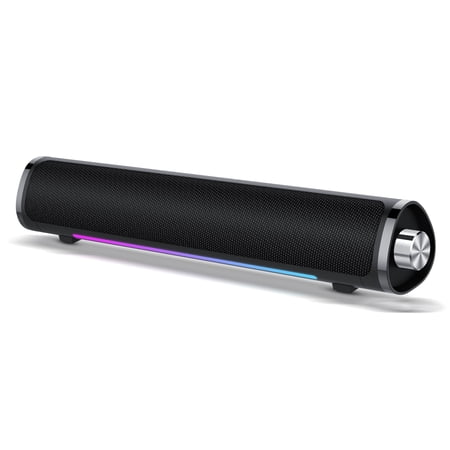
Click the link to discover more products --- CASCHO Shop Our team:CASCHO is a team dedicated to manufacturing intelligent products and is committed to meeting customers' various functional needs for intelligent products. Unlike other brands, we are careless in our promotions. We spend most of...
6. Quick Optimization Checklist
- Speakers form an equilateral triangle with your head
- Tweeters at ear level (use foam pads to tilt if needed)
- 30° toe-in angle toward listening position
- At least 4–6 inches from back wall
- Subwoofer under desk or beside desk (not corner unless you want max bass)
- Windows sound set to 24-bit, 48000 Hz minimum
- All audio enhancements disabled
- Spatial sound set to Off
- Equalizer APO configured with a listening curve
- Cables routed away from power sources
- Isolation pads under speakers (decouples from desk)
- Soft surface (rug, curtain, or desk mat) in the room
Frequently Asked Questions
Do I need an external DAC for better sound?
Only if your motherboard audio is noisy (hiss, static, or electrical whine). Most modern motherboards (2020+) have clean enough DACs for desktop speakers under $100. An external USB DAC like the Apple USB-C to 3.5mm adapter ($9) is a cheap upgrade if you hear noise — it bypasses the internal soundcard entirely. If you’re using passive speakers that need more power, check out our Best Computer Amplifier recommendations.
Will better cables improve sound quality?
Not unless your current cables are damaged. Cheap 3.5mm cables either work or they don’t — there’s no “sound quality” difference between a $3 cable and a $30 cable at desktop distances. The exception is USB cables on noisy ports — a ferrite choke cable can reduce interference.
Should I use front or rear speaker ports?
Rear motherboard ports for analog audio (green jack). Front panel audio shares a header inside the case and picks up electrical noise from fans and USB traffic. The difference is small but measurable — cleaner signal from the rear panel.
Why do my speakers sound tinny?
Most likely causes: tweeters below ear level (sound bounces off the desk), speakers too close to a wall (bass cancellation), or audio enhancements enabled in Windows (compressing the dynamic range). Check those three things first — they fix 80% of “tinny speaker” complaints.
Can I use a soundbar for better desktop audio?
A soundbar under your monitor (or mounted above) improves clarity over built-in monitor speakers but sacrifices stereo separation — the left and right channels are inches apart instead of feet apart. Soundbars are better for TV/movie dialogue than music or gaming where directional audio matters.
Is It Worth Upgrading?
If you’ve followed every optimization in this guide and your speakers still sound mediocre, then yes — an upgrade is worth considering. But for 9 out of 10 setups, placement and software changes produce a bigger improvement than spending money on new speakers. Run through the checklist first. If your speakers still sound off, the recommendations in Section 5 give you a clear upgrade path.
Skip the upgrade if: you haven’t adjusted placement or Windows settings yet. Fix those first — they’re free and they work.