Computer Station Nation is reader-supported.
When you buy through links on our site, we may earn an affiliate commission. Learn more.
Most printer problems — streaky prints, faded colors, paper jams — trace back to one root cause: the printer is dirty and nobody’s cleaned it. Printers are basically mechanical devices that push ink through tiny nozzles and move paper through rollers dozens of times. Dust, dried ink, and paper dust build up. Here’s how to clean the parts that actually need it.
What you’ll need
- Lint-free cloths or coffee filters (not paper towels — they leave lint)
- Isopropyl alcohol (90%+ concentration)
- Cotton swabs
- Compressed air can (optional but useful)
- Distilled water
Skip household cleaners, ammonia-based products, and anything abrasive. They’ll damage coatings and rubber rollers.
Cleaning the print heads (inkjet only)
This is the fix for most print quality issues: streaky output, missing lines, colors that look wrong.
Method 1: Use the built-in cleaning utility
Every inkjet printer has a head cleaning routine built into its software. It pushes ink through the nozzles to clear blockages. On Windows/Mac: go to the printer’s properties/preferences → Maintenance or Utilities tab → Head Cleaning or Print Head Cleaning.
Run a nozzle check pattern first to confirm where the problem is. Then run one cleaning cycle and check again. Don’t run more than 2–3 cycles in a row — each cycle uses a significant amount of ink, and over-cleaning can create new problems.
Method 2: Manual print head cleaning
For stubborn clogs that survive multiple cleaning cycles:
- Remove the ink cartridges
- Dampen a lint-free cloth or cotton swab with distilled water (not tap water — minerals will clog nozzles)
- Gently wipe the nozzle plate — the metal or plastic surface the ink comes out of
- Let it dry completely before reinserting cartridges
If the clog still won’t clear: some users have success soaking the print head (if removable) in a shallow dish of warm distilled water for 10–15 minutes, then blotting dry. This is a last resort before replacing the cartridge or head.
Cleaning the paper rollers
Slipping rollers cause misfeeds and jams. Paper dust and coating buildup is usually the culprit.
- Turn the printer off and unplug it
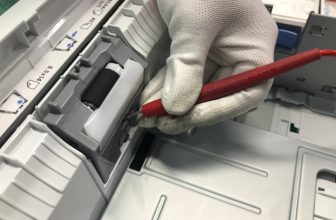
- Open the paper tray and rear access panels to expose the rollers
- Dampen a lint-free cloth with isopropyl alcohol
- Manually rotate each roller while pressing the cloth against it — you’ll see the grime come off on the cloth
- Let dry completely before using
Many printers also have a roller cleaning mode in the maintenance menu — worth trying before doing it manually. It runs a sheet of paper through to pick up debris.
Cleaning the scanner glass
Streaks on scans almost always mean a dirty scanner glass. One small smudge creates a vertical line on every scan.
- Open the scanner lid
- Spray a small amount of glass cleaner onto a lint-free cloth (not directly on the glass)
- Wipe the entire glass surface in one direction
- Buff with a dry section of the cloth
- Also clean the underside of the scanner lid — it’s often overlooked and causes the same streaking problem
Cleaning the exterior and vents
Less critical for print quality but worth doing for heat management. Dust-clogged vents can cause the printer to run hot and trigger error conditions.
- Use compressed air to blast dust out of vents and crevices
- Wipe the exterior with a lightly damp cloth
- Never spray liquids directly into the printer
How often to clean
If you print regularly (daily or weekly): clean the exterior monthly, run a nozzle check and cleaning cycle if print quality drops. If you print rarely (a few times a month or less): ink in the nozzles dries between uses, causing clogs. Run a nozzle check and cleaning cycle before any important print job if the printer has sat idle for more than 2 weeks.
FAQ
Can I use tap water to clean print heads?
No — tap water contains minerals that can clog nozzles further. Use distilled water only for anything that contacts the print head or nozzles.
My prints are streaky but the nozzle check looks fine. What’s wrong?
Check the print head alignment — it’s a separate calibration from head cleaning. Most printers have an alignment routine in the same maintenance menu. Misalignment causes banding and color fringing even when all nozzles are firing.
How do I know if the rollers need cleaning vs. replacing?
If cleaning the rollers with alcohol doesn’t fix misfeeds after 2–3 attempts, the rubber has worn smooth or hardened. At that point, the rollers need replacing — it’s a physical wear issue, not a cleanliness issue. Check the printer parts replacement guide for when to replace vs. repair.