Computer Station Nation is reader-supported.
When you buy through links on our site, we may earn an affiliate commission. Learn more.
Picking a gaming mouse shouldn’t be complicated. But between grip styles, sensor specs, wireless protocols, and a wall of DPI numbers that mean nothing, it gets confusing fast. This guide cuts through all of that. Every decision point — grip, game type, connectivity, specs, budget — broken down so you leave knowing exactly what to buy and why.
This covers mice from $10 to $100. Three tested picks at different price points, straight talk on which features are worth paying for, and which are pure marketing. Let’s dive in.
- Best budget: TSV Gaming Mouse ($10.98) — covers the basics, RGB, four DPI steps, plug-and-play
- Best overall: Logitech G305 LIGHTSPEED ($39.99) — HERO sensor, 250-hour battery, true wireless under $40
- Best mid-range wireless: Razer Basilisk V3 X HyperSpeed ($69) — dual wireless modes, customizable scroll wheel, solid build quality
For full reviews and more options at every price point, see our best gaming mice roundup.
Step 1: Figure out your grip style
Grip style determines the shape and weight you should be shopping for. No single grip is better — it’s about what’s natural for your hand. Most people already use one of these without knowing it has a name.
| Grip style | How it looks | Best weight range | Best for |
|---|---|---|---|
| Palm | Full hand rests flat on the mouse | 80–130g | Long sessions, MMO, casual play |
| Claw | Palm on rear, fingers arched at knuckles | 60–90g | FPS, fast flicks, precision work |
| Fingertip | Only fingertips touch the mouse, no palm contact | 40–70g | Competitive FPS, low-sens players |
Not sure which you use? Place your hand on your current mouse and check whether your palm touches the back. Full contact = palm grip. Fingers bent, palm barely touching = claw. Basically pinching it from above = fingertip.
Step 2: Match to your game type
Game genre matters more than most buyers realize. An MMO mouse on a battle royale player is dead weight — literally. Match the mouse to what you actually play most.
| Genre | Recommended weight | Button count | Notes |
|---|---|---|---|
| FPS (CS2, Valorant, Apex) | Under 70g | 5–6 buttons | Light = faster wrist movement, fewer misclicks |
| Battle royale (Warzone, Fortnite) | Under 90g | 6–8 buttons | Extra side buttons useful for ping/build binds |
| MOBA (League, Dota 2) | 60–100g | 6–8 buttons | Accuracy matters more than speed here |
| MMO (WoW, FFXIV) | 80–130g | 12+ buttons | Side-button grid replaces keyboard macros |
| RTS / strategy | 70–100g | 6–8 buttons | Comfort during long sessions is priority |
| Casual / general use | Any | 5+ | Pick for comfort; no competitive pressure |
Step 3: Pick your connectivity
Wired used to be the only serious option. That changed around 2019. Here’s where things actually stand.
Wired: Zero latency overhead, no battery to charge, works on any PC. The cable can create friction on your mousepad if it’s stiff — look for braided cables or consider a bungee. Budget under $25, wired is your only realistic option anyway.
2.4 GHz wireless: In blind testing, 2.4 GHz wireless is latency-equivalent to wired. Logitech LIGHTSPEED and Razer HyperSpeed both clock in under 1ms response time. Battery life is the main variable — look for at least 40 hours at 1,000 Hz polling rate. Below that and you’re charging mid-week during a session.
Bluetooth: Skip it for gaming. Bluetooth adds 8-15ms of latency on top of your base input chain. Fine for office work. For a game where 10ms can mean losing a duel, avoid it entirely. Some mice include Bluetooth as a bonus mode for travel — totally fine to use it that way.
The short version: wired for budgets under $40, 2.4 GHz wireless for $50+, Bluetooth never for gaming.
Step 4: Set your budget
| Price tier | What you get | What you give up |
|---|---|---|
| $10–25 (ultra-budget) | Wired, functional sensor, basic switches | Wireless, premium feet, optical switches |
| $25–50 (budget wireless) | 2.4 GHz wireless, decent sensor | Optical switches, premium build materials |
| $50–100 (mid-range) | Optical switches, 1,000 Hz wireless, PTFE feet | 8,000 Hz polling, top-end materials |
| $100–160 (premium) | Best sensors, lightest builds, 8,000 Hz | Nothing meaningful — diminishing returns |
For most players, the sweet spot is $50-100. You get everything that measurably improves performance. Above $100, you’re paying for marginal improvements and brand prestige.
Step 5: Understand the specs that matter
DPI (dots per inch)
Most professional players use 400-800 DPI. The practical ceiling where higher DPI stops meaning anything useful is around 4,000. Above that, you’re getting sensor interpolation and marketing numbers. Set your DPI to whatever feels comfortable for your sensitivity, and stop chasing big numbers.
Polling rate
1,000 Hz (1ms report rate) covers 99% of setups. 8,000 Hz polling is real but requires a 6-core CPU and a 240 Hz monitor to notice any difference. On a 60 Hz or 144 Hz display, you won’t feel it. Don’t pay a premium for 8,000 Hz unless your whole setup can actually use it.
Switch type
Optical switches fire in roughly 0.5ms with no debounce delay. Mechanical switches have a 2-5ms debounce window built in to prevent double-click noise. For competitive play, optical switches are faster. Mechanical switches are fine for everyone else and often feel better to some users. Neither will make or break your game at the budget tier.
Weight
Four tiers to know: under 60g is elite/competitive, 60-80g is lightweight, 80-100g is standard, 100g+ is MMO/heavy. Match to your grip and genre from Steps 1 and 2. Honeycomb shells save weight but collect dust and feel cheaper in hand.
Sensor quality
A good sensor has zero smoothing, no angle snapping (which forces cursor movement into straight lines), and a stable polling rate. PixArt 3395 and 3370 are the reliable choices at mid-range. At the ultra-budget tier, you’ll get generic sensors — functional, but not great for high-speed tracking.
Step 6: Check the physical build
Feet (glide pads) matter more than most buyers check. PTFE (Teflon) feet give consistent, low-friction glide. Mixed-compound feet feel different as they wear in and can develop inconsistent spots. Look for “100% PTFE feet” in the product specs if smooth, predictable movement is important to you.
Lift-off distance (LOD) is worth checking if you play FPS at low sensitivity. Low-sens players constantly lift and reposition the mouse. If the LOD is too high, the cursor keeps moving as you lift. Adjustable LOD in software is better than a fixed setting.
Cable flexibility matters for wired mice. A stiff rubber cable drags on the pad and throws off aim. Paracord cables or thin braided cables solve this without buying a bungee.
Side buttons should click cleanly without wobble. Mushy or rocking side buttons are a common budget mouse problem that reviews always catch — watch for it.
Our picks at each price tier
Ultra-budget pick: TSV Gaming Mouse Wired — $10.98
For under $11, this is a functional wired mouse that does the job. No optical switches or PTFE feet, but it clicks, tracks, and works out of the box. Good first gaming mouse or a desk backup.
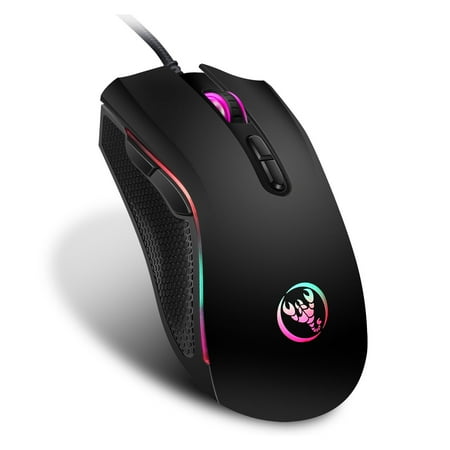
TSV RGB wired gaming mouse with 7 bright colors LED-backlit and ergonomics design for comfortable touch, long-term use without fatigue. This RGB Backlit Gaming Mouse adopts the 603EP high-end optical engine chipset, and precise positioning, including 7 silent buttons: Left, Right, Scroll Wheel,...
Budget wireless pick: FFN Wireless Gaming Mouse — $15.79
Wireless under $20 is rare. If you need cable-free on a tight budget, this is the option. Manage expectations on battery life and sensor accuracy at this price — but it exists and it works.
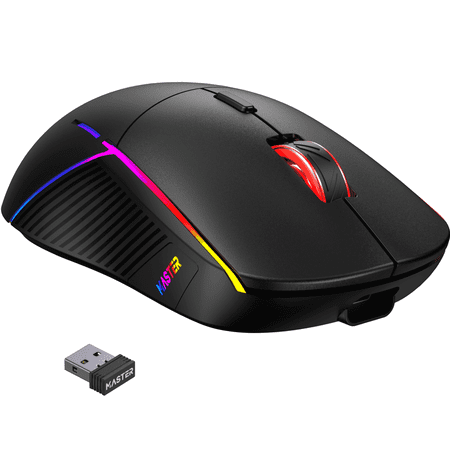
Upgrade your setup with the FFN 3-Mode Wireless Gaming Mouse — a precision tool designed for gamers and creators who need flexible connectivity and customizable control. This lightweight mouse supports 2.4GHz wireless, Bluetooth 5.3, and USB-C wired modes, and features an adjustable DPI range up...
Mid-range pick: Razer Basilisk V3 X HyperSpeed — $69
This is the recommendation for most buyers. The Basilisk V3 X HyperSpeed runs Razer’s HyperSpeed 2.4 GHz wireless — latency-equivalent to wired. Great sensor, tilt-click scroll wheel, solid battery life. Covers FPS, battle royale, and general use well.
One honest note: Razer Synapse uses around 485MB of RAM and gets a lot of community criticism for bloat. Configure the mouse once and close Synapse — it saves to onboard memory. Worth knowing before you install it, though.
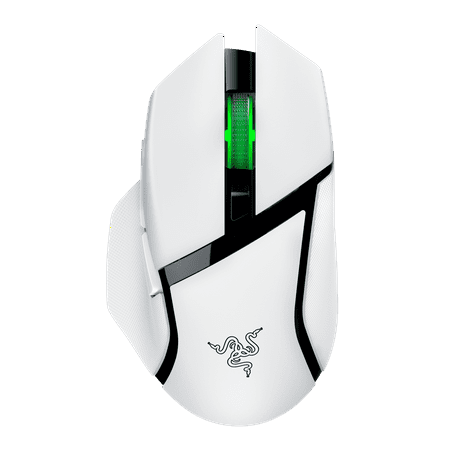
Razer RZ01-04870300-R3U1 Basilisk V3 X Hyperspeed Wireless Gaming Mouse for PC, RGB Chroma, White
What to skip
DPI above 4,000. It’s a spec number, not a performance number. Manufacturers list 16,000 or 25,600 DPI because it looks impressive on the box. No one plays at those settings.
RGB lighting. It adds weight, uses power on wireless mice, and costs money. If you genuinely like it, fine — just don’t pay a premium for it.
8,000 Hz polling rate on a budget. Some cheaper mice now advertise 4,000 or 8,000 Hz. Without a high-end CPU and a 240 Hz monitor, your system can’t use it. It can actually cause stuttering on mid-range systems if the driver overhead is high.
Honeycomb shells if you hate dust. They save 10-15g but every hole collects debris. If you eat at your desk or have a dusty room, a solid shell stays cleaner and lasts longer.
Proprietary charging connectors. Standard USB-C is worth paying slightly more for. A dead proprietary cable means buying a replacement from one vendor at a markup.
Frequently asked questions
Does a more expensive mouse make you a better player?
Not directly. A $70 mouse won’t improve your aim if the $25 mouse you own already tracks accurately. What a better mouse removes is equipment friction — missed clicks from bad switches, cursor drift from a poor sensor, or fatigue from a shape that doesn’t fit your hand. Fix those problems if they exist. Don’t upgrade a mouse that already works fine.
What DPI should I use?
Start at 800 DPI and adjust from there. Most FPS pros play between 400 and 800 DPI. MOBA and RTS players often go higher — around 1,200-1,600 — because precision micro-movements matter less than coverage speed. There’s no universally correct number. The right DPI is the one where your cursor crosses your screen in roughly one full arm sweep from the edge of your mousepad.
Is wireless gaming mouse latency actually comparable to wired?
Yes, for 2.4 GHz wireless specifically. Razer HyperSpeed and Logitech LIGHTSPEED have both been independently tested below 1ms response time — within the measurement noise of wired mice. Bluetooth is the exception: it adds 8-15ms and should be avoided for gaming. If a wireless mouse only lists Bluetooth and not a dedicated 2.4 GHz USB receiver, skip it for gaming use.
How long should a gaming mouse last?
A well-made mouse should last 3-5 years with regular use. The weakest point is usually the switches — rated click counts range from 10 million (budget) to 100 million (optical switches). Feet wear faster than switches for most users. PTFE feet on a hard pad last 1-2 years; on a cloth pad they last longer. When glide becomes inconsistent, replacement feet are cheap and easy to swap.