Computer Station Nation is reader-supported.
When you buy through links on our site, we may earn an affiliate commission. Learn more.
Your mic was working fine. Now it isn’t. Something changed, or maybe nothing changed and it just stopped.
Either way, let’s fix it. Work through these in order — most microphone problems have simple causes.
Problem: Microphone Not Detected / Not Showing Up
Check the obvious first
- Is the mic plugged in? (Not silly — USB-A connections work loose.)
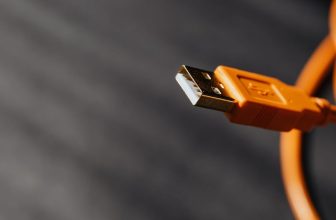
- Is the USB cable fully seated at both ends?
- Does the mic have a power indicator? Is it lit?
Try a different USB port
USB hubs are a common culprit. Mics — especially condenser mics — draw more power than a hub can reliably deliver. Plug directly into a port on your motherboard (the ones on the back of a desktop, or built into a laptop). Avoid front panel USB ports if possible — they’re often lower quality.
Windows: Check Device Manager
Press Win + X → Device Manager. Look under “Audio inputs and outputs” and “Sound, video and game controllers.” If your mic appears with a yellow warning triangle, right-click it → Update driver → Search automatically. If it doesn’t appear at all, look under “Universal Serial Bus controllers” for unknown devices.
Windows: Check Privacy Settings
This one gets people. Windows 10/11 has a mic privacy toggle that blocks apps from accessing your microphone.
Settings → Privacy & Security → Microphone → Make sure “Microphone access” is On and “Let apps access your microphone” is On. Scroll down and check that the specific app you’re using is also enabled.
macOS: Check Privacy Settings
System Settings → Privacy & Security → Microphone. Make sure the app you’re using is listed and has the toggle enabled. If it’s not in the list, try opening the app and triggering a mic request — it should then appear for you to approve.
Restart the audio service (Windows)
Press Win + R → type services.msc → find “Windows Audio” → right-click → Restart. Also restart “Windows Audio Endpoint Builder.” This fixes a lot of weird audio issues without requiring a full reboot.
Problem: Mic Is Detected But No Sound / Input Level Flat
Confirm the right device is selected
Open Sound Settings (Windows) or System Settings → Sound (macOS) and verify your actual microphone is selected as the input device — not your webcam’s built-in mic, not “Stereo Mix,” not a virtual device left over from old software.
Check if gain is at zero
In Windows Sound Settings → click your mic → Properties → Levels tab. Make sure the microphone level isn’t set to 0. Same for any software gain knob on the mic itself if it has one.
XLR users: Check phantom power
Condenser mics require +48V phantom power from the audio interface. Look for the 48V button on your interface and make sure it’s enabled. Without it, a condenser mic produces no output at all.
Check for a mute button
Many mics have a physical mute button — often a tap-to-mute on the top of the capsule. Tap it once, or check if an LED has changed color (often red = muted on HyperX and Blue mics). Embarrassingly common cause of “my mic suddenly stopped working.”
Problem: Audio Is Too Quiet
Increase hardware gain first
Turn up the gain knob on the mic (if it has one) or on the audio interface. Don’t crank software gain before doing this — hardware gain is cleaner.
Then increase software gain
Windows: Sound Settings → click mic → Properties → Levels tab → increase microphone boost (usually +10dB or +20dB available). macOS: System Settings → Sound → Input → drag the Input Volume slider up.
Check mic placement
Are you speaking into the correct side of the mic? Side-address mics (like the Blue Yeti) capture from the side, not the top. Speaking into the top of a side-address mic gives you very low output because you’re off-axis from the capsule. Check your mic’s documentation.
Problem: Audio Is Distorted or Crackling
Gain too high
Turn down the mic gain. Distortion from overdriving the input is the most common cause of clipping and crackling audio. The input level meter should peak around -12dB to -6dB during normal speech — not hitting the top.
USB power issues
Crackling over USB is often a power delivery problem. Try a different USB port (directly on the motherboard). Avoid USB hubs. Some high-powered mics like the Blue Yeti can cause issues on USB 3.0 ports on certain motherboards — try USB 2.0 instead.
Sample rate mismatch
If your mic and your computer are set to different sample rates, you’ll get crackling or pitched audio. Windows: Sound Settings → click mic → Properties → Advanced tab → check the sample rate. Set it to 48000Hz (2 channel, 16 bit) or whatever your mic supports. Match this to your recording software’s sample rate settings.
Driver conflict
If you’ve recently installed new software — particularly virtual audio devices like VoiceMeeter, Voicemod, or virtual meeting software — they can create audio routing conflicts. Try disabling or uninstalling them temporarily to see if the crackling stops.
Problem: Echo or Hearing Yourself in the Mic
Disable microphone playback / “Listen to this device”
Windows: Sound Settings → click your mic → Properties → Listen tab → uncheck “Listen to this device.” This is often accidentally enabled and causes you to hear your own voice on a delay through your speakers.
Discord / app echo cancellation
If the echo is happening in a specific app (Discord, Zoom), another participant’s setup is likely causing it — their speakers are feeding back into their mic. Ask them to use headphones, or enable echo cancellation in the app settings as a stopgap.
Problem: Excessive Background Noise / Hiss
See our full guide on reducing background noise for the complete treatment. The short version:
- Get closer to the mic
- Turn down gain and compensate by moving closer
- Use a dynamic mic instead of condenser for noisy environments
- Enable NVIDIA RTX Voice or Krisp for AI noise removal
- Add a noise gate in OBS or your recording software
Problem: Mic Works Everywhere Except One App
This is almost always a permissions or default device issue within that specific app.
- Check in-app audio settings — Most apps have their own audio device selector. Make sure your mic is selected there, not just in system settings.
- Restart the app — Some apps lock onto an audio device at launch and won’t see newly connected devices without a restart.
- Run as Administrator (Windows) — Some apps need elevated permissions to access audio hardware.
- Reinstall the app — Audio permission settings can become corrupted.
Still Not Working?
If you’ve worked through everything above and the mic still isn’t functioning, it’s time to test the hardware itself.
Plug your mic into a different computer entirely. If it works there, the problem is your system configuration. If it doesn’t work on another machine either, the mic itself is likely faulty — check the warranty and contact the manufacturer.
For XLR setups: test with a different XLR cable, and test the mic with a different audio interface if possible. Cables fail more often than mics. Interfaces fail more often than mics. Figure out which piece is dead before assuming it’s the mic.