Computer Station Nation is reader-supported.
When you buy through links on our site, we may earn an affiliate commission. Learn more.
You’ve got the router. Now let’s make sure it’s actually configured for gaming. Most routers ship with default settings that treat all traffic equally — a few tweaks change that in your favor.
Step 1: Wire Your Gaming Rig
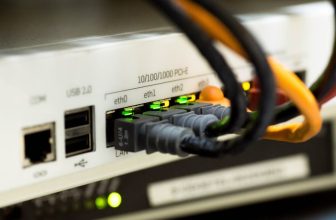
Not technically a router setting, but this is the single highest-impact change you can make. An Ethernet cable to your gaming PC or console eliminates wireless interference, reduces latency by 5-20ms, and removes the variability that causes jitter. No router configuration beats a wired connection.
If wiring is impossible (your gaming setup is too far from the router), use a powerline adapter or MoCA adapter before giving up on wired. Only use Wi-Fi as a last resort for competitive gaming.
Step 2: Enable QoS and Prioritize Your Gaming Device
Log into your router admin panel or app. Find QoS (Quality of Service) settings. Enable it. Add your gaming PC or console by MAC address or IP and set it as high priority. This tells the router to give your gaming device first access to available bandwidth.
On TP-Link routers: Tether app → your router → QoS → Enable → Add device. On NETGEAR: admin panel → QoS Setup. On ASUS: network map → your device → priority. The location varies by brand but every modern router has it.
Step 3: Use the 5 GHz (or 6 GHz) Band
If you’re gaming over Wi-Fi, always connect to the 5 GHz band (or 6 GHz on Wi-Fi 6E/7 routers). It’s less congested and significantly faster at close-to-medium range. The 2.4 GHz band is shared by microwaves, baby monitors, Bluetooth devices, and every neighbor’s router — all of which cause interference that spikes your ping.
Step 4: Optimize Wi-Fi Channel
In a dense apartment building, multiple routers competing on the same Wi-Fi channel cause interference. Log into your router admin panel and look at the 2.4 GHz channel settings. If it’s on auto, try manually setting it to channel 1, 6, or 11 — the three non-overlapping channels. Use a Wi-Fi analyzer app (Wi-Fi Analyzer on Android is free) to see which channels your neighbors are using and pick the least congested one.
Step 5: Disable Bandwidth-Hogging Features
Some router features sound useful but eat bandwidth: UPnP (useful but creates security holes), Parental Controls with deep packet inspection (adds latency overhead), and cloud-based management features that constantly sync. Disable anything you don’t actively use.
Step 6: Update Firmware
Manufacturers regularly release firmware updates that improve routing performance and fix latency issues. Check your router app or admin panel for updates. A 6-month-old firmware version often has documented performance improvements available in the current release.
Step 7: Open NAT Type (Console Gaming)
Strict or Moderate NAT type on PlayStation or Xbox can affect matchmaking and connection quality. To get Open NAT: enable UPnP in your router settings (easiest option), or set up a DMZ for your console’s IP, or manually forward the ports your game uses. UPnP handles this automatically for most games.
Impact Summary
| Optimization | Impact on Gaming | Difficulty |
|---|---|---|
| Switch to wired Ethernet | High — eliminates wireless latency | Easy |
| Enable QoS, prioritize gaming device | High — reduces congestion impact | Easy |
| Use 5 GHz / 6 GHz band | Medium — lower interference | Easy |
| Set optimal Wi-Fi channel | Medium — reduces neighbor interference | Easy |
| Open NAT type | Medium — improves matchmaking | Moderate |
| Update firmware | Low-medium — depends on release notes | Easy |