Computer Station Nation is reader-supported.
When you buy through links on our site, we may earn an affiliate commission. Learn more.
Adaptive & Accessible Computing Equipment: The Complete Buying Guide (2026)
If standard computer gear makes your daily workflow harder instead of easier, you’re not imagining it, and you don’t have to just live with it. Whether you’re dealing with low vision, limited mobility, chronic pain, or just want a setup that works with your body instead of against it, the right adaptive equipment can transform your computer from a source of frustration into a genuine productivity tool.
The problem is that most buying guides either lump everything under “ergonomics” or focus on clinical assistive technology that costs a fortune. This guide is different. We’re covering the real-world adaptive computing equipment — from large-print keyboards and voice-control software to height-adjustable desks and assistive communication devices — that actually works for home office workers, gamers, students, and professionals who need their computer to adapt to them.
We researched the market, checked real user reviews across forums and accessibility communities, and verified every product claim against current data. Here’s everything you need to know to build an adaptive computing setup that fits your specific needs — without overpaying or overcomplicating it.
Table of Contents
- What to Look For in Adaptive Computing Equipment
- Key Features Explained by Need Type
- Who It’s For — Matching Equipment to Your Situation
- Top Adaptive Equipment Picks
- Red Flags to Avoid
- Frequently Asked Questions
What to Look For in Adaptive Computing Equipment
Adaptive computing isn’t one-size-fits-all. The right equipment depends on what type of barrier you’re working around. Here are the main categories to consider:
Vision Accessibility Features
For users with low vision or visual processing challenges, the key adaptations involve contrast, size, and audio feedback. Look for large-print keyboards with high-contrast yellow-on-black or white-on-black keycaps, monitors with high contrast ratios (3000:1 or better) and adjustable brightness that goes low enough to reduce eye strain, and screen magnification software compatibility. Magnification only helps if the text stays sharp at high zoom levels instead of turning into a blurry mess of pixels.
Mobility and Dexterity Adaptations
If you have limited hand or arm mobility, the priorities shift to alternative input methods and adjustability. Consider adaptive switches (button-based input devices you can activate with minimal pressure), trackball mice that require zero arm movement, ergonomic split keyboards that reduce hand strain, and voice control software compatibility. Trackballs in particular are worth a closer look if reach and repetitive wrist motion are the bigger issue rather than grip strength, since the device stays stationary and only your thumb or fingers move. For users with tremors or fine motor challenges specifically, a specialized mouse like the Best Computer Mouse for Parkinson’s can make a real difference. Height-adjustable desks also fall into this category — being able to switch between sitting and standing changes your working position and reduces fatigue over long sessions.
Hearing Accessibility Considerations
For users with hearing impairments, the computer needs to communicate visually. This means ensuring your setup supports visual notification systems, captioning tools, and vibration alert devices. While there’s less hardware involved here than vision or mobility adaptations, choosing a monitor with good visual clarity for sign language video calls and a well-positioned webcam for clear signing visibility matters. Some users also benefit from screen flash alerts that pulse the display when notifications arrive, which works alongside or instead of auditory cues. These visual indicators are often built into the operating system accessibility settings and cost nothing to enable — check your sound settings for visual notification options before buying any additional hardware.
Ergonomic Foundation
Before adding specialized adaptive gear, make sure your basic ergonomic foundation is solid. This includes a desk at the right height (or adjustable), a chair that supports proper posture, and a monitor positioned at eye level. Desk thickness and build quality matter more here than most people expect. Many users find that simply switching to a height-adjustable desk solves a surprising number of accessibility challenges by letting them work in whatever position is most comfortable on any given day.
Budget and Space Planning
Adaptive computing doesn’t have to break the bank. A functional starting setup costs under $200 when you combine built-in OS accessibility tools with a budget height-adjustable desk and one or two adaptive peripherals. It’s worth taking the time to measure your workspace and plan your layout before buying anything — measure the clearances for wheelchair access, check where power outlets are located, and think about cable routing so nothing becomes a tripping hazard or an obstacle to maneuver around.
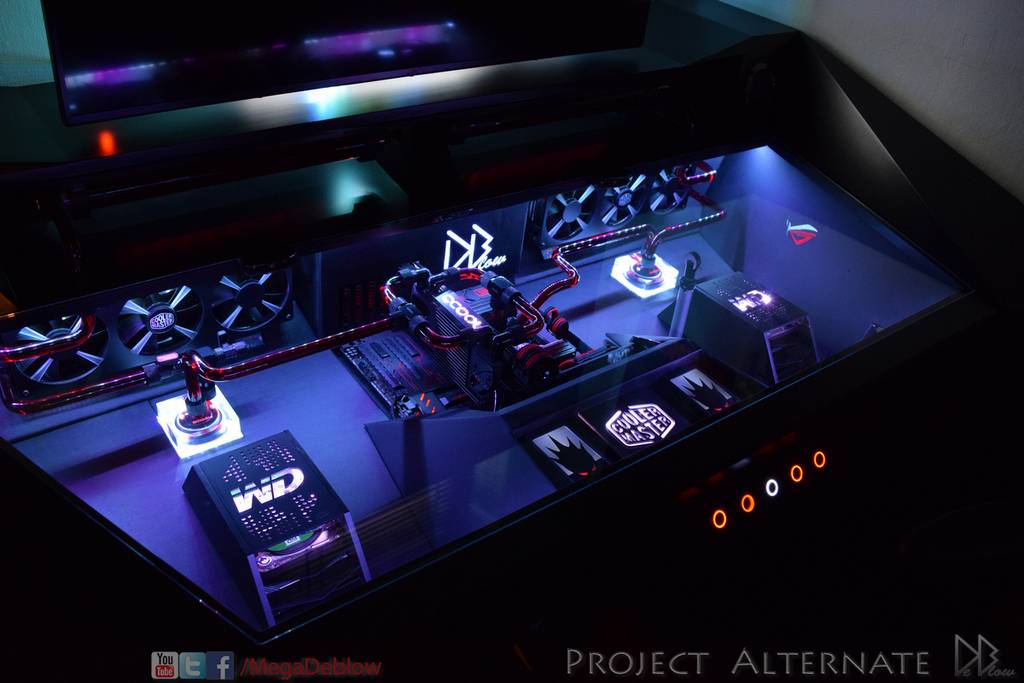
For users with limited space, computers built into desks offer a compact integrated solution that keeps everything within easy reach while freeing up floor area for wheelchair access or mobility aids. These space-saving designs are especially helpful in smaller rooms where a traditional desk-and-tower setup would crowd the available area.
Key Features Explained by Need Type
Not every spec matters equally depending on your situation. Here’s how to prioritize:
| Feature | Why It Matters | Who Should Prioritize It |
|---|---|---|
| Height adjustability | Lets you switch between sitting and standing; critical for pain management and energy conservation | Mobility limitations, chronic pain, fatigue |
| Large-print keycaps | High-contrast letters reduce eye strain and make key identification faster | Low vision, processing disorders |
| Low-actuation-force keys | Requires less finger pressure to register a keystroke | Arthritis, limited hand strength, RSI |
| 1600×900 or higher resolution | Supports magnification without losing screen real estate | Low vision (paired with magnifier software) |
| USB-C or Bluetooth connectivity | Simplifies connections and reduces cable clutter; critical for switch users who need specific ports | All accessibility categories |
| Programmable buttons | Lets you remap keys and create macros for common tasks | Mobility limitations, one-handed use |
Who It’s For — Matching Equipment to Your Situation
Adaptive computing isn’t a single market. There are several distinct groups of users here, each with different needs:
The Low-Vision User
You need a screen you can actually see. The priorities are a high-contrast large-print keyboard (yellow-on-black is the most readable combination for most users), a monitor with excellent contrast ratio, and ecosystem compatibility with screen readers like JAWS, NVDA, or Windows Narrator. The standing desk is less critical here unless you also have mobility concerns.
The Mobility-Constrained User
Limited hand, arm, or full-body mobility means every interaction with your computer needs to be as low-effort as possible. Adaptive switches, voice control, and a height-adjustable desk that accommodates wheelchair access are the core investments. Look for desks with generous clearance underneath and simple one-button height presets — complicated menus defeat the purpose.
The Chronic Pain / Ergonomic User
If you spend 8+ hours at a desk and your body is telling you to change something, the foundation is a good height-adjustable desk and ergonomic peripherals. This is the most common adaptive computing use case. The key is adjusting frequently — a desk with programmable height presets makes it practical to change positions throughout the day rather than staying locked into one position out of inertia.
The Communication Device User
For non-verbal users or those with speech impairments, assistive communication devices (like the AbleNet LittleMack featured below) turn the computer into a voice. These devices pair with communication apps and allow users to record and play back messages at the press of a large, easy-to-activate button. Durability and battery life are the specs that matter most here.
Top Adaptive Equipment Picks
These products represent the best value across different adaptive computing categories. Prices and availability verified as of July 2026.
Best Height-Adjustable Desk for Accessibility: edx Electric Standing Desk
The edx Electric Standing Desk (48×24 inches) offers a practical entry point into sit-stand computing. Its T-shaped metal bracket provides stability at standing height, and the memory preset lets you save preferred positions — useful when switching between a wheelchair-accessible height and a standard sitting height. At under $80 with over 6,000 ratings at 4 stars, it’s one of the most affordable electric standing desks available while still including the features that matter for accessibility.
edx Electric Standing Desk — $78.99 at Walmart
Best Full-Size Standing Desk: Homall 48×24 Electric Standing Desk
Stepping up from the edx, the Homall brings a wider 48×24 surface and a higher weight capacity. The white finish is a bonus for visibility — high-contrast desk surfaces help users with low vision distinguish the work area from surrounding space. With a 5-star average from 400+ reviews, buyers consistently praise the stability at full extension, which matters when you’re using adaptive peripherals that need to stay put.
Homall 48×24 Electric Standing Desk — $119.99 at Walmart
Best Budget Adjustable Desk: TINKLE WELL Electric Standing Desk
At just $86.99 for the 63×24 size, the TINKLE WELL gives you the most surface area per dollar in the adjustable-desk category. The wider surface is particularly useful if you need space for adaptive peripherals — switches, communication devices, or oversized keyboards — alongside your standard monitor and mouse. The 5-star rating from verified purchasers suggests the build quality exceeds expectations at this price point.
TINKLE WELL Electric Standing Desk — $86.99 at Walmart
Best Assistive Communication Device: AbleNet LittleMack
The AbleNet LittleMack is a dedicated assistive communication device that lets users record and play back messages with a single press of a large, easy-to-activate button. It’s built for durability in both home and classroom environments. While pricier than consumer peripherals at $155, it fills a specific role that generic equipment can’t replace — and for users who need it, it’s the difference between being able to communicate and not.
AbleNet LittleMack — $155.00 at Walmart
Best Ergonomic Laptop Stand for Limited Desk Space: StarTech Rotating Laptop Stand
The StarTech Rotating Laptop Stand brings laptop screens to eye level while adding 360-degree rotation — useful for demonstrating your screen to someone beside you without needing to pick up the laptop. The 360 swivel is particularly handy for users in wheelchairs who may approach the desk from different angles throughout the day. At $71.99, it’s a targeted solution for laptop users who need better screen positioning without buying a full monitor arm or external display.
StarTech Rotating Laptop Stand — $71.99 at Walmart
Best Standing Desk Converter for Existing Desks: CHANGEdesk Adjustable Converter
If you already own a desk you like but need standing capability without replacing the whole setup, the CHANGEdesk Adjustable Converter sits on top of your existing surface. Its wide platform accommodates dual monitors alongside adaptive peripherals, and the smooth height mechanism can be operated one-handed — a meaningful consideration for users with limited hand strength. At $186.64 it’s the premium option here, but it’s still far cheaper than buying a full electric desk if your existing surface works for you.
CHANGEdesk Adjustable Standing Desk Converter — $186.64 at Walmart
Red Flags to Avoid
Adaptive computing is full of well-intentioned products that don’t deliver. Here’s what to watch out for:
- Buying a “special” adaptive keyboard before trying software solutions first. Windows and macOS both have extensive built-in accessibility features (Sticky Keys, Filter Keys, on-screen keyboards, Voice Access and Dictation). Many users find that free software tweaks eliminate the need for specialized hardware. Don’t spend money on hardware until you’ve explored what your operating system already gives you.
- Height-adjustable desks without programmable presets. If a desk requires you to hold a button to reach your preferred height, you’ll stop adjusting. The whole point is to change position frequently — and if it’s inconvenient, you won’t do it. Look for desks with at least two programmable memory settings.
- Ultra-cheap “adaptive” keyboards from no-name brands. Many $15 “large print” keyboards on Amazon use stick-on keycap labels that peel off within weeks or have inconsistent key registration. Stick with established peripheral brands that happen to make large-print versions, or buy quality keycap stickers separately for your existing keyboard.
- Voice control solutions that require constant internet. If the voice recognition engine processes everything in the cloud, you lose functionality when your internet goes down. Modern solutions like Windows Voice Access (built-in, works offline) and Dragon NaturallySpeaking (locally processed) are more reliable than web-only alternatives.
- Ignoring your chair. It’s easy to focus on desks, keyboards, and monitors, but an ill-fitting chair undermines every other adaptive investment. If your feet don’t rest flat on the floor (or a footrest), if the armrests don’t match your desk height, or if the lumbar support misses your lower back, start with the chair before anything else.
- Buying a monitor without considering its backlight quality and adjustability. A monitor with poor backlight control can cause significant eye strain, especially for users with low vision or light sensitivity. Look for flicker-free technology, a wide brightness range for dark rooms, and blue-light reduction modes that actually work without washing out color accuracy. Many budget monitors skimp on backlight quality, making them a poor choice for long accessibility-focused work sessions.
Frequently Asked Questions
Do I need a doctor’s prescription to buy adaptive computer equipment?
No. While some high-end assistive technology devices (like dedicated AAC communicators or specialized braille displays) may require a professional evaluation for funding purposes, most adaptive computer equipment — large-print keyboards, height-adjustable desks, ergonomic peripherals, and trackball mice — is available over the counter. If you’re seeking insurance or vocational rehabilitation reimbursement, you will typically need a doctor’s recommendation or an occupational therapy assessment.
What’s the difference between ergonomic and adaptive equipment?
Ergonomic equipment is designed for general comfort and injury prevention for able-bodied users. Adaptive equipment is designed to remove specific barriers for users with disabilities. A split keyboard is ergonomic; a single-hand keyboard or switch-adapted input device is adaptive. A standard height-adjustable desk is ergonomic; a desk with wheelchair clearance and one-button presets is adaptive. The line blurs, but the key difference is intentional design for specific accessibility needs rather than general comfort.
Can I use adaptive equipment with a laptop, or do I need a desktop?
All the equipment in this guide works with laptops. Adaptive peripherals (keyboards, communication devices, switches) connect via USB or Bluetooth. Height-adjustable desks and monitor arms work with laptop stands. For users who need a dedicated ergonomic workspace, computer desks with recessed monitors offer an integrated approach. For those who need external monitors for larger display sizes, a USB-C hub or docking station makes connecting everything to a laptop straightforward.
Is adaptive computer equipment covered by insurance or vocational rehab?
In many cases, yes. Vocational rehabilitation programs in most states will fund adaptive computer equipment if it’s necessary for employment. Private insurance may cover assistive communication devices (like the AbleNet LittleMack) with a doctor’s prescription and letter of medical necessity. Medicare Part B covers “durable medical equipment” but typically limits coverage to items that are primarily medical in nature rather than general-use computers. Check with your specific provider — coverage varies significantly by state and plan.
Where can I try adaptive equipment before buying it?
Assistive technology centers, state disability organizations, and independent living centers often have demo programs where you can test equipment before purchasing. The Association of Assistive Technology Act Programs (ATAP) runs a nationwide network of state-level AT programs that loan equipment. Local tech accessibility meetups and disability-focused organizations may also have gear you can test in person before committing to a purchase.
How much should I budget for an adaptive computing setup?
A basic adaptive setup — height-adjustable desk, large-print keyboard, and ergonomic mouse — can cost as little as $150 to $250 if you choose budget-friendly options like the edx standing desk paired with affordable peripherals. A mid-range setup with a better desk, an assistive communication device like the AbleNet LittleMack, and specialized input devices runs $300 to $600. High-end setups with premium electric standing desks, multiple adaptive peripherals, and dedicated AAC devices can exceed $1,000. The good news is that built-in operating system accessibility features (screen readers, voice control, magnification) are free, so your money goes toward the hardware barriers that software can’t fix.