Best Capture Cards for Streaming – Budget-Friendly Picks for 2026

Computer Station Nation is reader-supported.
When you buy through links on our site, we may earn an affiliate commission. Learn more.
Best Capture Cards for Streaming – Budget-Friendly Picks for 2026
Maybe you want to start streaming on Twitch, YouTube, or Kick — or maybe you already are, but you’ve realized your single-PC setup is struggling to game and encode at the same time. A capture card is the piece of hardware that bridges the gap. It lets you offload the video encoding to a separate device, freeing up your main machine to focus on gaming while the streaming PC (or the capture card itself) handles the video. The payoff is smoother gameplay, cleaner streams, and way less stress on your hardware.
You don’t need to drop $200+ on an Elgato to get started. The capture card market has exploded and there are now solid options that deliver 1080p 60fps capture for under $25. Whether you’re streaming from a PS5, Switch, or Xbox, or just recording gameplay, there’s a card here for you.
Here’s what you need to know about what to look for in a capture card, highlight the best budget picks available right now — including our roundup of Best Capture Cards for Streaming (2026): Budget Options That Actually Work — and show you how to get everything set up in OBS in about five minutes.
What to Look for in a Capture Card
Here are the basic features that matter when you’re shopping for a capture card for streaming:
- Resolution & Frame Rate: For a clean stream, you want 1080p at 60fps minimum. Every card in this guide hits that target. Some also support 4K passthrough, which means your game stays in 4K on your monitor while the card captures at 1080p — a great middle ground.
- USB Connectivity: Budget cards use USB 3.0, which provides enough bandwidth for 1080p 60fps capture. Avoid USB 2.0 cards — they usually max out at 30fps, which looks choppy on stream.
- Latency / Passthrough: Look for cards with low-latency passthrough via HDMI. You want the signal to go from your console to your monitor without any noticeable delay. Most budget cards handle this fine for casual and even semi-competitive gaming.
- Plug-and-Play Compatibility: The best budget cards need zero driver installation — just plug into a USB 3.0 port, add a Video Capture Device source in OBS, and you’re live.
- Audio: Built-in audio capture over HDMI is essential. You don’t want to mess around with separate audio cables for game sound.
Top Budget Capture Cards Compared
These are the best budget-friendly capture cards for streaming right now — see our dedicated Best Budget Capture Cards for Streaming (All Under $20) for even more options:
1. Vivitar HDMI to USB Video Capture Card – Best Overall Under $20
The Vivitar capture card is the standout pick in the budget category. With over 490 ratings on Walmart averaging 4 stars, it’s the most-reviewed budget capture card on the market right now. It gives you 1080p 60fps capture over USB 3.0, works with PS5, Xbox, Nintendo Switch, and includes a USB-C adapter for modern laptops.
The Vivitar wins on build quality and broad compatibility. The USB-C adapter means MacBook users and streamers with newer ultrabooks aren’t left out. Setup is genuinely plug-and-play: plug it in, open OBS, add a Video Capture Device source, and your console feed appears instantly.
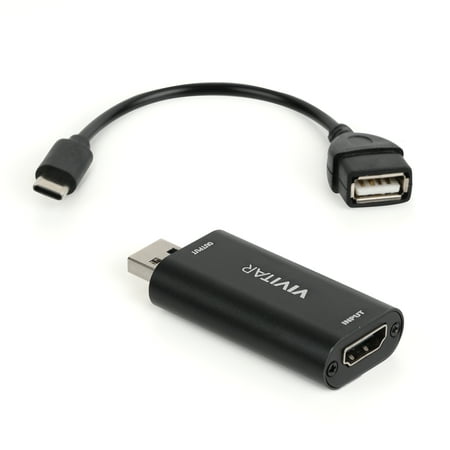
The Vivitar Creator Series HDMI to USB Video Capture Card Converter with Real-time HDMI Video and Audio Capture provides real-time HDMI video and audio capture for next-level live streaming, online class teaching, vlogging, video conferencing and dual screen share. With our advanced transmission...
2. Monster HDMI Capture Card – 4K Passthrough on a Budget
The Monster HDMI Capture Card brings something rare at this price point: true 4K passthrough. Your console or PC can output 4K to your monitor while the card captures at 1080p 60fps. This is a big deal if you’re gaming on a 4K display and don’t want to drop down to 1080p just to stream.
With 453 reviews and a 4-star average on Walmart, this is one of the most trusted budget cards available. The USB 3.0 connection ensures low-latency transmission, and it supports HDMI audio capture so you don’t need separate audio cables.
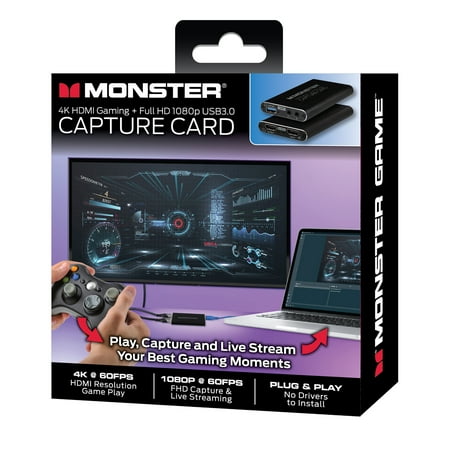
Plug in and go live with the Monster HDMI Capture Card, designed to help you easily stream, record, and share your gameplay or presentations in stunning detail. Whether you're teaching, gaming, or presenting, this video capture card delivers smooth HD video and crisp audio to keep your audience...
3. 4K HDMI Capture Card for Streaming – Solid All-Rounder
This no-name generic capture card proves you don’t need a brand name for quality performance. It captures 1080p 60fps over USB 3.0, supports HDMI audio passthrough, and works with every major console including Nintendo Switch, PS5, Xbox Series X/S, and PS4. With 174 ratings at 4 stars, it’s proven reliable for thousands of streamers.
It’s about the size of a pack of gum — it’s about the size of a pack of gum, making it perfect for travel or a clean desk setup.
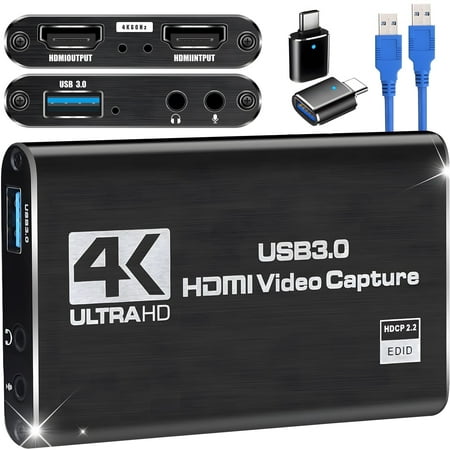
【4K Loop-out & 2K30 Capture】 This HDMI game capture card for switch comes with 5 ports. Faster transmission speed, better meet the needs of high frame rate video capture, support 4K 60HZ HDMI input and loop out up to 4K 60HZ, perfectly adapted to USB3.0 1080P 60fps/2K30fps video output. Support...
4. Video Capture Card 4K – Best for Streaming Beginners
If you’re just getting into streaming, this USB 3.0 capture card is the easiest starting point. It’s compatible with game consoles, cameras, and PCs, works with OBS, Streamlabs, and XSplit, and provides clean 1080p 60fps capture at an insanely low price point.
The 4K in the name refers to its passthrough capability, not capture resolution — it can pass a 4K signal through to your display while capturing at 1080p. That’s the same feature set that Elgato cards charge ten times more for.
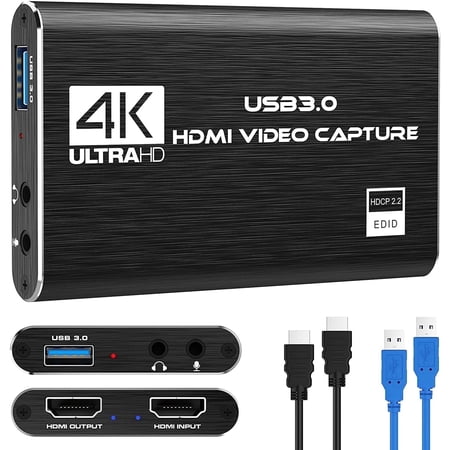
Product details Specification: Product Name: Samovi 4K Video Capture Card Internal Interfaces: USB 3.0 Compatible Port: USB 3.0 Broadcast Formats Supported: live broadcasts External Interfaces: Standard Output Number of Ports: 5 Ports Video Capture: Digital & Analog Resolution: 4k 30Hz Suitable...
How to Set Up Your Capture Card in OBS
Once you’ve got your capture card, setting it up in OBS Studio takes less than five minutes:
- Plug the capture card into a USB 3.0 port on your PC (blue port, not black). USB 2.0 won’t provide enough bandwidth for 60fps.
- Connect your console or PC to the capture card’s HDMI In port using a standard HDMI cable.
- Connect your monitor to the capture card’s HDMI Out port (passthrough) — this lets you play without latency while the card captures.
- Open OBS Studio. Click the + button under Sources and choose Video Capture Device.
- Name your source (e.g., “Capture Card”), then in Properties select your capture card from the Device dropdown.
- Set resolution to 1920×1080 and FPS to 60. You should see your console feed appear instantly.
- In OBS Settings → Audio, make sure the capture card is selected as an audio input device so your game audio comes through.
For a more detailed walkthrough, check out our complete guide: How to Set Up a Capture Card for Streaming (Step-by-Step).
USB 3.0 vs. PCIe Capture Cards – Which Should You Choose?
Most budget capture cards use USB 3.0, and for the vast majority of streamers, that’s perfectly sufficient. USB 3.0 provides up to 5 Gbps of bandwidth, which is more than enough for 1080p 60fps video with audio.
USB 3.0 external cards (like all the picks above) are:
- Portable and easy to swap between setups
- Plug-and-play with zero installation
- Compatible with laptops as well as desktops
PCIe internal cards (like the Elgato vs AVerMedia: Which Capture Card Brand Actually Wins? comparison covers both) offer:
- Lower latency (direct PCIe connection)
- More consistent bandwidth (no USB controller sharing)
- Higher capture quality options (4K capture, HDR support)
For beginners and intermediate streamers, a USB 3.0 external card is the right choice. You get the same 1080p 60fps quality at a fraction of the price, and you can take it to a friend’s house or a LAN event. Upgrade to PCIe only if you need 4K capture or HDR10 passthrough down the line.
Console Compatibility – Which Cards Work Where
Budget HDMI capture cards work with almost everything. Here’s what works with what:
- Nintendo Switch: All cards listed work perfectly. The Switch outputs 1080p in docked mode, which is the ideal input for these cards. The capture card handles the HDCP handshake automatically for streaming (though some games require disabling HDCP in Switch system settings).
- PlayStation 5: Works with all cards. Go to PS5 Settings → Captures and Broadcasts → Video Clip Capture → turn off HDCP when using a capture card. Otherwise the signal will be blocked.
- Xbox Series X/S: Straightforward plug-and-play. No HDCP issues to worry about. The cards capture 1080p 60fps from the Xbox output.
- PC to PC: You can also use a capture card to stream from a gaming PC to a dedicated streaming PC. HDMI out from the gaming PC goes into the capture card, which feeds into the streaming PC via USB.
Frequently Asked Questions
Do I need a capture card to stream?
Not if you’re on a single PC with a decent GPU. NVIDIA NVENC on RTX cards handles streaming remarkably well. But if you’re streaming from a console or your PC chokes on the extra encoding load, a capture card solves that.
Will a cheap capture card add lag?
Not to your gameplay. The passthrough HDMI port sends the signal directly to your monitor with no processing delay. The USB capture feed to your PC may have 50-100ms of delay, but OBS automatically syncs audio and you can add a delay offset to match. If you do run into issues, see our guide on How to Fix Capture Card Lag and Quality Issues in OBS.
Can I stream 4K with a budget capture card?
These cards capture at 1080p 60fps, but most support 4K passthrough — meaning your game displays in 4K on your monitor while the card captures the downscaled 1080p feed for streaming. That’s the standard approach even with high-end cards.
Do I need drivers for these capture cards?
No. Every card listed here uses standard UVC (USB Video Class) and UAC (USB Audio Class) protocols. Windows, macOS, and Linux recognize them as a generic webcam/microphone device with zero driver installation.
Which is better — HDMI or USB capture card?
They’re the same thing for external cards. The card has an HDMI input for your console and connects to your PC via USB. Internal PCIe cards use a different connection but are overkill for 1080p streaming.
Final Verdict – Which Capture Card Should You Buy?
Bottom line:
- Vivitar HDMI to USB Capture Card ($13) — the best all-around budget pick. The USB-C adapter makes it future-proof, 490+ reviews confirm it’s reliable, and the price is unbeatable.
Monster HDMI Capture Card ($21.74) — get this one if you have a 4K monitor and want passthrough without dropping resolution. Solid build, great review count.
4K HDMI Capture Card for Streaming ($16.99) — the pocket-friendly option with proven reliability. Perfect for travelers or minimalists.
Any of these cards will get you streaming in minutes with crisp 1080p 60fps quality. Just start — you can upgrade later if you need more features. Your audience cares about what you’re playing and how you talk, not whether you’re running an Elgato or a $13 Vivitar.
Ready to set up your new capture card? Head over to our step-by-step guide for the full walkthrough.