Computer Station Nation is reader-supported.
When you buy through links on our site, we may earn an affiliate commission. Learn more.
Quick Take: A great monitor for graphic design needs color accuracy (Delta E ≤ 2), wide gamut coverage (sRGB 99%+ / Adobe RGB 90%+), and enough resolution to see fine detail. IPS panels remain the gold standard for creative work, though modern OLED options are closing the gap. Whether you’re designing on a $200 budget or investing in a professional-grade studio display, this guide covers what matters — and helps you pick the right monitor without wasting money on specs that don’t serve your workflow.
Table of Contents
- What Makes a Monitor Good for Graphic Design?
- Key Specs to Look For (Color Gamut, Panel Type, Resolution, Delta E)
- Best Budget Options for Designers ($79–$174)
- IPS vs OLED vs VA for Creative Work
- How Resolution Affects Your Design Workflow
- Monitor Calibration — Why It Matters and How to Do It
- Frequently Asked Questions
What Makes a Monitor Good for Graphic Design?
Not every monitor is built for design work. A $99 office display that looks fine for spreadsheets can completely misrepresent your color choices, contrast ratios, and fine details. For graphic designers, the monitor matters more than anything else after the computer itself — it’s where every color decision and subtle gradient gets judged.
Here’s what separates a design-ready monitor from a general-purpose screen:
- Color accuracy (Delta E ≤ 2): A Delta E value under 2 means the colors you see are essentially indistinguishable from the source values. Professional-grade monitors often ship with factory calibration reports confirming this.
- Wide color gamut (99%+ sRGB, 90%+ Adobe RGB or DCI-P3): sRGB covers web and digital work. Adobe RGB matters for print. DCI-P3 is the standard for video and modern HDR content. A monitor that only covers 70% of sRGB will show you wrong colors — you’ll make decisions based on hues that don’t exist on other screens.
- High resolution (1440p minimum, 4K ideal): More pixels mean sharper text, finer detail, and room for tool palettes without sacrificing canvas space. At 24–27 inches, 4K gives you roughly 163 PPI — text looks smooth, and you can zoom into vector paths without seeing individual pixels.
Beyond these core specs, panel technology matters. IPS (In-Plane Switching) panels offer the best viewing angles and most consistent color reproduction across the screen — which is why they dominate the design monitor market. For specific model recommendations and real-world performance data, see our Best Monitors for Graphic Design 2026 roundup where we break down specific models and their real-world performance.
Key Specs to Look For
Color Gamut Coverage
Color gamut describes the range of colors a monitor can display. Three standards matter for designers:
- sRGB: The baseline for web and digital content. Aim for 99–100% coverage. Anything below 95% will show dull, inaccurate colors.
- Adobe RGB: Wider than sRGB — essential for print design and photography editing. Look for 90%+ if you work in print.
- DCI-P3: The video and HDR standard. Critical for UI/UX designers creating for modern devices that use P3 displays (iPhones, iPads, MacBooks).
A monitor like the MSI G242LW with its IPS panel delivers 120% sRGB coverage in its spec sheet, making it a solid entry-level option for designers on a tight budget. Higher-end choices push past 95% DCI-P3 and ship with individual factory calibration data — see the Color Gamut Explained glossary for the full breakdown of these color spaces.
Panel Type: IPS vs OLED vs VA
Each panel technology has trade-offs for design work:
| Panel Type | Color Accuracy | Contrast | Viewing Angles | Best For |
|---|---|---|---|---|
| IPS | Excellent | Good (1000:1) | 178°/178° | Color-critical design, photo editing, extended viewing |
| OLED | Excellent | Infinite | Great | HDR content, video editing, deep blacks |
| VA | Good | Very Good (3000:1) | Narrower | Budget gaming with decent contrast, not ideal for color work |
IPS remains the safest choice for graphic design. The viewing angle consistency alone — colors don’t shift when you move your head — saves hours of frustration. OLED is catching up fast with better burn-in mitigation and perfect blacks, but it costs more per inch and can suffer from text fringing on subpixel layouts.
Resolution and Screen Size
Resolution directly impacts how much detail you can see and how comfortably you can work:
- 1080p (FHD): Workable at 24 inches but pixels are visible. Fine for wireframing and UI mockups; less ideal for detailed illustration or photo retouching.
- 1440p (QHD): The sweet spot for 27-inch monitors. Good pixel density (~109 PPI), sharp text, and enough canvas for most design tools.
- 4K (UHD): The gold standard for design. At 27 inches (~163 PPI), text is razor-sharp and you can fit toolbars plus a full canvas. Most professional designers consider 4K table stakes.
- 5K: Overkill for most workflows but invaluable for video editors and high-end photo retouchers working with 100% zoom views alongside palettes.
If you’re weighing 4K vs 5K, our 4K vs 5K comparison breaks down whether the upgrade is worth it for your specific workflow. For most designers, a good 4K IPS monitor delivers 95% of the benefit at half the price.
Best Budget Options for Designers
You don’t need to spend $1,000 to get a design-capable monitor. The models below offer IPS panels, solid color performance, and enough resolution for serious design work — all under $180.
MSI G242LW — 23.8″ FHD IPS (Best Budget Pick)
At $79, the MSI G242LW is the most affordable IPS monitor in this guide. It covers the essentials: an IPS panel for accurate colors and wide viewing angles, 144Hz refresh rate that makes UI navigation feel fluid, and 1ms response time. The 1080p resolution at 23.8 inches is fine for wireframing, UI design, and entry-level creative work. It’s an excellent starting point for students or designers building their first setup.
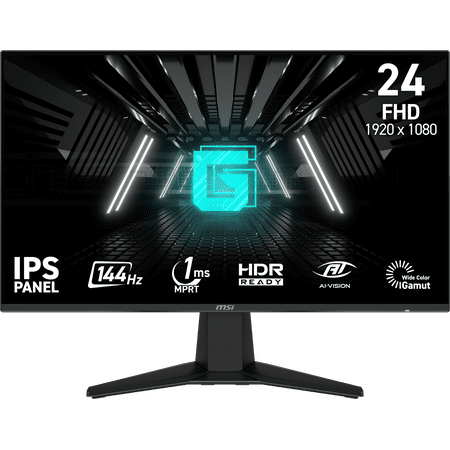
Enjoy smooth and vibrant gaming with the MSI 23.8" FHD IPS Gaming Monitor. This 23.8-inch monitor features a Full HD (FHD) 1920 x 1080 resolution and an IPS panel for clear, accurate colors from wide viewing angles. With a 144Hz refresh rate, 1ms response time, and AMD FreeSync, you’ll...
CRUA 24″ Curved — 165Hz IPS with 120% sRGB
The CRUA 24″ curved monitor delivers 120% sRGB color gamut coverage and a 165Hz refresh rate at $89.99. The curved 1800R panel creates a more immersive workspace, and FreeSync support keeps motion smooth. The 120% sRGB rating means colors pop — way above the 95% baseline most designers need. Downside: the curved form factor can cause slight geometric distortion for precision layout work, so it’s better suited to general design than print-accurate page layout.
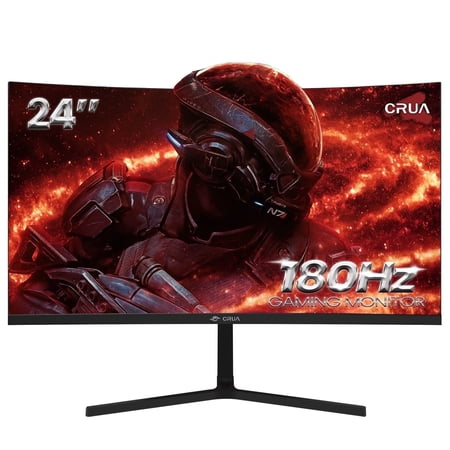
️Epic Gaming Mate - CRUA 24" Curved Gaming Monitor Enhance your visual experience with the CRUA CR240DM 24 inch monitor. Immerse yourself in stunning visuals with 1080P resolution, a fast 180Hz refresh rate, and a professional-grade VA panel. AMD FreeSync technology ensures smooth gaming, while...
onn 24″ FHD 180Hz — Best Value IPS for Mixed Use
onn’s 24-inch 180Hz IPS monitor at $99 is a compelling all-rounder. The IPS panel delivers accurate colors, 180Hz refresh makes scrolling through large design files effortless, and FreeSync support prevents tearing during video previews. With nearly 4,000 positive reviews, it is a solid pick for designers who also game on the same monitor. The 1080p resolution limits detail work, but for web and UI design it still gets the job done.
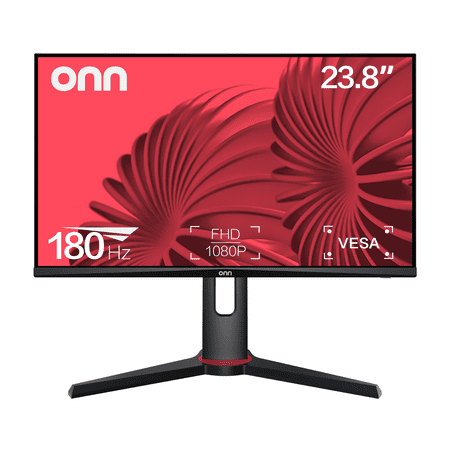
The onn 24" FHD Gaming Monitor is a high-performance display designed for gaming enthusiasts. With a 24" (23.8" actual diagonal) screen size, it boasts a 1920 x 1080p resolution, providing a crisp and clear Full High Definition (FHD) visual experience. The monitor's 180Hz refresh rate and 1ms...
KOORUI 24″ Curved — Entry-Level with Eye Care
The KOORUI 24″ curved monitor at $95.99 includes eye-care features (flicker-free, blue light filter) that matter for designers who spend 8+ hours at the screen. The 100Hz refresh and 1500R curve make for comfortable long sessions. The VA panel delivers better contrast than IPS (3000:1 vs 1000:1), although viewing angles are narrower. Good for budget-conscious designers working on web and social media graphics.
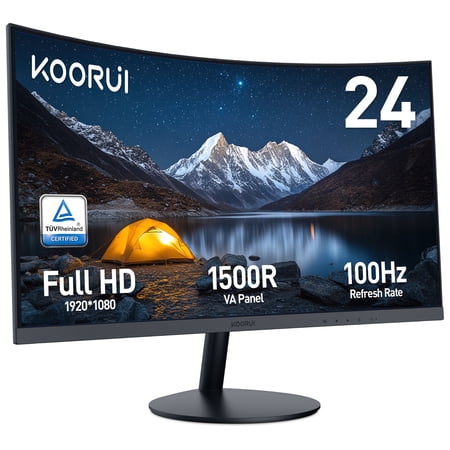
KOORUI 24-inch Curved Monitor: See Better, Feel Better. Experience enhanced immersion with a 1500R curvature for comfortable viewing, while the 100Hz refresh rate and Adaptive Sync ensure ultra-smooth visuals for focused work, study, and play. Enjoy crisp FHD detail with easy switching between...
Gawfolk 27″ Curved — Big Screen, Low Price
The Gawfolk 27-inch curved monitor at $109.59 gives you a larger canvas at an entry-level price. The 100Hz refresh rate and built-in speakers make it a practical all-in-one option for home offices and student design setups. The larger 27-inch form factor at 1080p means lower pixel density (~81 PPI) — text won’t be as sharp as a 4K panel, but for wireframing, mood boards, and layout sketches, the extra screen real estate helps you fit more on screen at once.
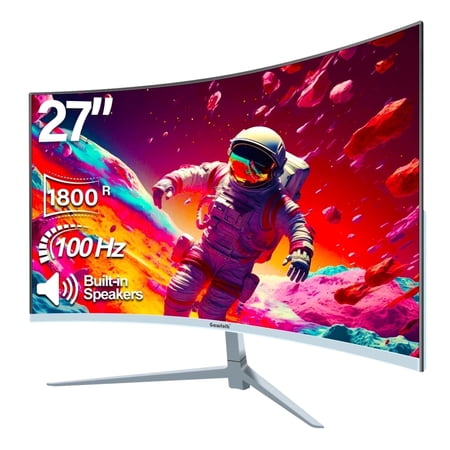
27-inch Curved Gaming White Monitor , 1800R, micro-arc built-in speaker, VA screen, 98% sRGB color gamut, 1920x1080p resolution, 100Hz refresh rate, and 5ms response time The VA panel has a brightness of 250cd/m2, a 16.7 million color gamut, and a dynamic contrast ratio of 4000:1, 16:9 The...
MSI Optix G32C4W — 31.5″ Curved (Best Large Budget Option)
The MSI Optix G32C4W is the largest monitor in this roundup at 31.5 inches. The 165Hz refresh rate and 1ms response time are overkill for design but make for buttery-smooth navigation. The curved 1800R panel wraps around your field of view, reducing neck strain during long sessions. At $174, it’s the most expensive of the budget options but delivers the most immersive experience for design work.
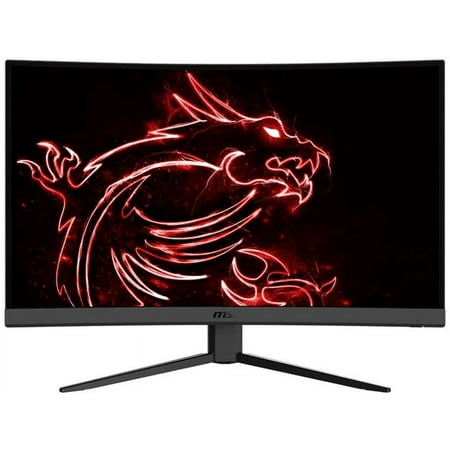
New Optix G32C4W monitors use a curved FHD 1920 x 1080 resolution panel that has a curvature rate of 1500R, which is the most comfortable and suitable for a wide range of applications from general computing to gaming. Equipped with a 165Hz refresh rate + 1ms response time VA LED panel which has...
Monitor Calibration — Why It Matters
Even the best monitor drifts over time. An uncalibrated screen shows colors that don’t match reality — warm tones shift, contrast ratios change, and your “perfect” design looks wrong on every other device. That’s why professional designers calibrate their monitors regularly.
We’ve written a full guide on how to calibrate your monitor for graphic design, covering hardware calibrators (X-Rite, Datacolor), software-only approaches (Windows Calibration Tool, macOS Display Calibrator Assistant), and the calibration schedules used by professional studios. The short version: calibrate at least once a month with a hardware puck for color-critical work.
Forum Highlights — What Real Designers Say
Reddit design communities generally recommend IPS panels with factory calibration. In a late-2025 thread on r/UXDesign, multiple users called out the BenQ PD2725U, praising its color accuracy and Thunderbolt connectivity with MacBooks. Budget-conscious commenters pointed to Asus ProArt displays, noting that the factory calibration reports on PA series models are accurate enough to skip a separate calibrator in the first year.
Long-term owners on r/AdobeIllustrator emphasized that viewing angle consistency was the deciding factor — IPS panels won every recommendation over VA or TN for design work, even when the competing panels offered higher contrast or faster refresh rates. Several users warned that curved monitors can introduce subtle distortion on straight lines and grids. Matters for print layout — usually fine for digital-first design.
Accessories to Complete Your Setup
A good design monitor needs a solid foundation. A calibration tool is the best money you can spend after the monitor itself. If you’re dealing with monitor color problems, we have a dedicated troubleshooting guide. An ergonomic monitor arm frees up desk space and puts the screen at the right height for long editing sessions. And proper desk lighting reduces eye strain and ensures you’re judging colors in consistent ambient light — fluorescent overheads can shift your color perception by several Delta E points.
Is It Worth Investing in a Design Monitor?
Who should buy a dedicated design monitor: Freelance designers, creative agency staff, photographers, video editors, and anyone whose income depends on color-accurate output. If a client rejects your work because “the colors look off on my screen,” a design-grade monitor with calibration is the fix.
Who can skip it: Developers who only need color for syntax highlighting, writers, office workers, and casual creators can use a general-purpose IPS monitor without issues. The budget options in this guide ($79–$174) bridge the gap — you get IPS accuracy without pro-level pricing.
Where to Buy
All monitors featured in this guide are available through Walmart with competitive pricing. Click through to check current availability and pricing.
Frequently Asked Questions
Do I need 4K for graphic design?
4K is strongly recommended but not strictly required. If you do print design, photo retouching, or UI/UX work, the extra pixels let you see fine detail and keep tool palettes open without crowding your canvas. For web design and social media graphics, a good 1080p IPS monitor is workable, but 4K is worth the investment if your budget allows.
Is a curved monitor good for design work?
Curved monitors can cause subtle geometric distortion on straight lines and grids, which matters for print-accurate layout. For digital-first design — web, social media, UI — the curve is usually fine and can actually reduce eye strain by keeping the entire screen at a consistent distance from your eyes. Flat IPS panels remain the safer choice for precision work.
What’s the minimum acceptable sRGB coverage for design?
95% sRGB is the floor for any design work. Below that, colors will appear washed out and inaccurate. Aim for 99% or higher if color-critical work is part of your daily workflow.
Can I use a gaming monitor for graphic design?
Yes — if it has an IPS panel and reasonable sRGB coverage. Many gaming monitors now ship with IPS panels that cover 100%+ sRGB, making them viable for design work. The trade-off is that gaming monitors prioritize refresh rate and response time over factory color calibration, so you’ll want to calibrate them yourself.
How often should I calibrate my monitor?
Monthly for color-critical professional work. Every 2–3 months is acceptable for general design work. A hardware calibrator (Spyder, X-Rite) costs $100–$200 and pays for itself in avoided color-matching headaches.
What’s the ideal screen size for design work?
27 inches is the sweet spot for most designers — enough canvas for tools and workspace without being overwhelming. 24-inch is fine for budget setups. 32-inch works well if you have the desk depth (at least 30 inches) to keep the screen at a comfortable viewing distance.