Computer Station Nation is reader-supported.
When you buy through links on our site, we may earn an affiliate commission. Learn more.
Your wrists hurt, and typing is the reason. Whether it is carpal tunnel, RSI, or plain tendonitis, every keystroke is another jab at the median nerve. The fix is not a better keyboard. It is a better input method: voice dictation.
Speech is roughly three times faster than typing. A 2016 study from Stanford, the University of Washington, and Baidu found speech recognition hit three times the speed of typing with a 20.4 percent lower error rate (University of Washington iSchool, 2016). The speed is nice. The relief is the point. Dictation moves the workload from your fingers to your voice, and your voice does not have carpal tunnel.
How common is the problem? A pooled analysis of six prospective workplace studies covering 4,321 workers found 7.8 percent met the case definition for carpal tunnel syndrome at enrollment (National Library of Medicine, PMC4042862). The same research notes CTS is the most expensive upper-extremity musculoskeletal disorder in the US, with medical costs exceeding $2 billion a year and a median of 27 days of lost work time per case. This is not a niche problem. It is a mainstream one with a proven workaround.
This guide is for anyone with hand or wrist pain who still has to get real work done. We evaluated seven voice dictation tools across Windows, Mac, and the browser, ranking the paid options by accuracy, workflow fit, and value. If you are building a full adaptive workstation, we already covered the display side in our Best Computer Monitor For Low Vision guide. This guide handles the input side. The short answer: for professional-grade dictation on Windows, Dragon Professional Individual is the pick. For most home users, Dragon Home 15 does the job at a third of the price.
Quick Picks — Best Voice Dictation Software
- Best overall: Dragon Professional Individual 15 — the pro-grade standard, built for long dictation sessions and heavy document work
- Best value: Dragon Home 15 — most of the accuracy, a third of the price, still Windows-only
- Best budget Dragon: Dragon NaturallySpeaking 13 Home — an older version that still works, for less money
- Best free option (Windows): Windows Voice Access — built into Windows 11, no install, no cost
- Best free option (Mac): Apple Dictation — built into macOS, dictates text of any length without a timeout
- Best free browser option: Google Docs Voice Typing — free, works in Chrome, solid accuracy
- Best for hands-free coding: Talon Voice — free, scriptable, built for programmers who cannot type
How We Chose
We evaluated seven dictation tools: the three paid Dragon editions currently sold through Walmart, plus the free built-in options on Windows, Mac, and the browser, the same tools covered step by step in our How to Set Up Built-In Accessibility Features in Windows and macOS for Adaptive Computing guide, and one specialty tool for programmers. Every paid pick was checked against live product data, including price, version, and review ratings. We weighed accuracy, how much setup each tool demands, whether it can run without an internet connection, and how well it fits the three main use cases: document writing, email and general desktop work, and code.
We did not rank purely on features. Carpal tunnel and RSI change the priority order. A tool that needs constant mouse clicking to correct errors is not helpful if clicking hurts. A one-time purchase beats a subscription for most people managing a long-term condition. Free built-in tools got extra credit because they cost nothing to try, and trying matters when you are not sure dictation will work for you.
One important note on scope: this list covers live dictation, where you speak and the text appears as you talk. Transcription tools that convert already-recorded audio files are a different category, and we left them out. If your hands hurt, the tool you want is the one that replaces typing in real time, not the one that processes a recording after the fact.
Things to Consider Before Buying
Before you spend money, think about platform, correction workflow, and offline use.
- Platform: Dragon runs on Windows only. Mac users get Apple Dictation for free or need a third-party tool. If you switch between Windows and Mac, pick something cross-platform or accept a two-tool setup. If your hands are the constraint, our One-Handed Mouse Alternatives for Disability — Best Options for Limited Hand Mobility (2026) roundup covers the mouse side of the desk.
- Correction workflow: The best dictation still makes errors, and the way you fix them matters for your hands. If a tool forces mouse-heavy corrections, it defeats the purpose. Dragon’s workflow is designed around hands-free use, and its command-and-control of applications is a known strength.
- Offline use: Dragon processes audio on-device, and Apple Dictation is built into macOS. Google Docs Voice Typing runs through your browser’s speech-to-text service, so it is not a local tool. If your setup is offline, that changes the ranking.
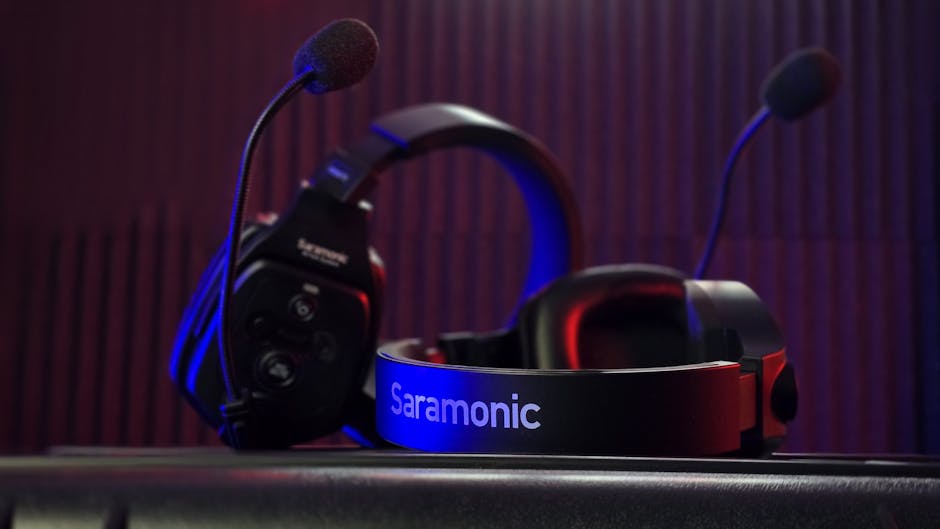
- Microphone: Dictation is only as good as the mic. Dragon includes a Nuance-approved microphone in the box, and a decent USB headset improves accuracy across every tool on this list.
- Cost model: Dragon is a one-time purchase. Subscription tools exist, but for a long-term condition a single payment is usually the better deal.
At a Glance
| Product | Best For | Price | Rating |
|---|---|---|---|
| Dragon Professional Individual 15 | Professionals, long documents | $489.40 | No Walmart rating |
| Dragon Home 15 | Home users, value | $159.98 | 4.0 / 12 reviews |
| Dragon NaturallySpeaking 13 Home | Budget Dragon | $129.99 | 4.0 / 11 reviews |
| Windows Voice Access | Free Windows dictation | Free | Built-in |
| Apple Dictation | Free Mac dictation | Free | Built-in |
| Google Docs Voice Typing | Free browser dictation | Free | Built-in |
| Talon Voice | Hands-free coding | Free | Open source |
Table of Contents
- 1. Dragon Professional Individual 15 — Best Overall for Professionals
- 2. Dragon Home 15 — Best Value for Home Users
- 3. Dragon NaturallySpeaking 13 Home — Best Budget Dragon
- 4. Windows Voice Access — Best Free Option on Windows
- 5. Apple Dictation — Best Free Option on Mac
- 6. Google Docs Voice Typing — Best Free Browser Option
- 7. Talon Voice — Best for Hands-Free Coding
- 8. Verdict
- 9. Buying Advice
- 10. FAQ
1. Dragon Professional Individual 15 — Best Overall for Professionals
Dragon Professional Individual is the version most workplaces buy, and for a simple reason: it is the most accurate dictation engine you can install on a PC, and it keeps working offline. Version 15 is the current release sold through Walmart as an electronic download. We rank it first for anyone dictating more than an hour a day.
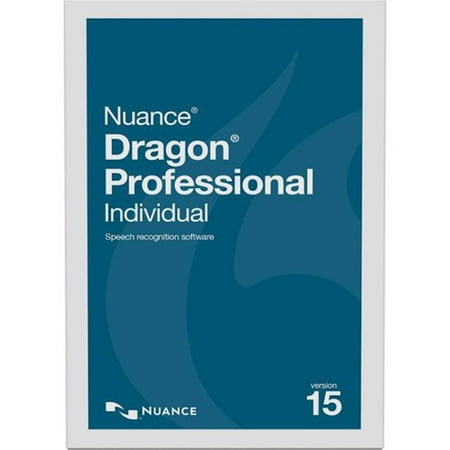
The all-new Dragon Professional Individual, v15, a smarter next-generation speech recognition solution empowers busy professionals to complete documentation and reporting quickly and accurately on the PC, so you spend more time on activities that boost the bottom line. Leveraging the latest in...
The Professional edition is aimed at people who dictate for work: authors, lawyers, doctors, journalists, anyone who writes long documents day in and day out. It carries the features that matter for that crowd, including deep command-and-control of applications and full offline use, and it is the edition you see most often in professional and clinical settings. Walmart lists the current version 15 as an electronic download, so you get a license key and installer rather than a physical disc.

| Version | 15 (electronic download) |
| Platform | Windows 7, 8, 8.1, 10 (32/64-bit) |
| CPU | 2.2 GHz dual-core or better |
| RAM | 4 GB (64-bit) |
| Disk | 4 GB free (8 GB for download installs) |
| Microphone | Nuance-approved microphone included |
Rating: 9.3/10
Pros
- Top-tier accuracy for long documents
- On-device processing — dictation does not depend on a cloud service
- Voice command-and-control of whole applications
- One-time purchase, no subscription
Cons
- Expensive at $489.40
- Windows only — no native Mac version
- Serious setup time: profile training and microphone calibration matter
- Older interface design shows its age
Check Dragon Professional Individual 15 on Walmart →
2. Dragon Home 15 — Best Value for Home Users
Dragon Home 15 is the consumer edition of the same engine, and for most people it is the smarter buy. It drops the office-specific extras, like legal and medical vocabularies and some automation features, but keeps the core dictation accuracy that makes Dragon worth paying for. At $159.98, it costs about a third of the Professional edition.
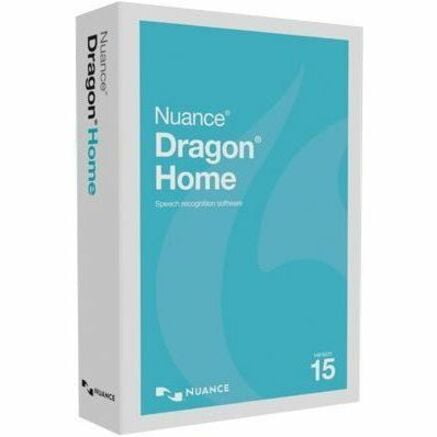
Dragon® Home v15 speech recognition helps you get more done on your PC by voice. Dictate documents, send email, search the Web, and more. Designed using Nuance Deep Learning technology, it delivers up to 99% recognition accuracy, adapts to different accents, and even works in noisy environments....
The Home edition covers the everyday workflow well: dictating into documents, email, search boxes, and chat windows, with voice commands for punctuation and formatting. If you have already decided to pay for Dragon, this is the version most home users should start with. It makes the strongest case for spending money instead of using a free tool.
| Version | 15 (box pack, 1 user) |
| Platform | Windows |
| Walmart rating | 4.0 / 5 from 12 reviews |
| License | 1 user, one-time purchase |
Rating: 8.8/10
Pros
- Same core dictation engine as Professional
- Much lower price for home use
- Offline dictation, no subscription
- Voice profile improves accuracy over time
Cons
- Windows only
- No advanced automation or command scripting
- Box pack still requires the DVD drive or digital install
Check Dragon Home 15 on Walmart →
3. Dragon NaturallySpeaking 13 Home — Best Budget Dragon
If the price tag is the blocker, Dragon NaturallySpeaking 13 Home is the version 13 release of the same product line at $129.99. The recognition engine is older than the version 15 releases, and the interface is dated, but it still does the core job: dictating into documents and email by voice. Walmart buyers rate it 4.0 out of 5 across 11 reviews.
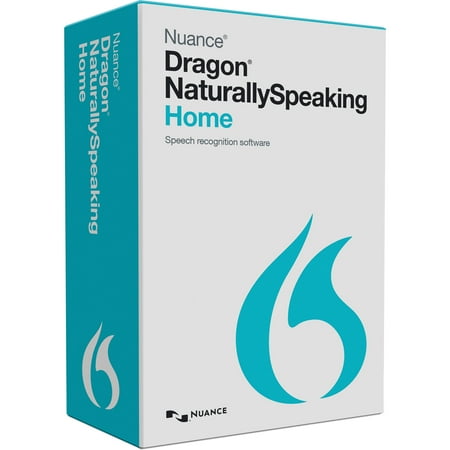
Dragon NaturallySpeaking 13 Home speech recognition software lets you get more done every day on your computer - quickly and accurately - using your voice. It's the fun, easy way to turn your spoken words into text much faster than you can type and execute simple voice commands for big...
The honest read: if version 15 Home fits the budget, buy it. The version 13 engine asks for more corrections on longer documents, and the gap shows up fastest when you dictate technical vocabulary or unusual names. What the 13 Home release still gets right is the core experience, offline dictation at a price that undercuts everything else with the Dragon name on it.
| Version | 13 (older release) |
| Platform | Windows |
| Walmart rating | 4.0 / 5 from 11 reviews |
| License | 1 user, one-time purchase |
Rating: 7.5/10
Pros
- Cheapest Dragon you can buy
- Offline dictation, no subscription
- Familiar Dragon workflow
Cons
- Older recognition engine than the version 15 releases
- Dated interface
- Setup still takes time before accuracy gets good
Check Dragon NaturallySpeaking 13 Home on Walmart →
4. Windows Voice Access — Best Free Option on Windows
Windows Voice Access is built into Windows 11, costs nothing, and lets you dictate text and control the PC entirely by voice. It replaced the older Windows Speech Recognition in Windows 11 22H2 and later, and for a free tool its accuracy is genuinely impressive. If you are not ready to spend money on Dragon, start here.
Because it is part of the operating system, there is nothing to install and no account to create. Open the setting, turn it on, and the PC listens for your voice. It handles both dictation and control commands, so you can open apps, click around, and type without touching the keyboard. For a first taste of hands-free computing, the price is hard to beat.

Rating: 8.0/10
Pros
- Free and built into Windows 11
- Dictation plus full voice control of the PC
- No install, no account, no subscription
Cons
- Accuracy below Dragon for long documents
- Windows 11 only
- Fewer correction commands than paid tools
Learn how to set up Windows Voice Access →
5. Apple Dictation — Best Free Option on Mac
Apple Dictation is built into macOS, and it is the free baseline every Mac user should try first. Apple’s support documentation notes you can dictate text of any length without a timeout, which makes it practical for real work, not just quick replies.
Mac users have fewer paid options than Windows users, because Dragon does not ship a native Mac version. That makes Apple Dictation more than a stopgap: for a large share of Mac users it is the daily driver. The punctuation and formatting commands cover most writing needs, and the lack of a timeout means you can dictate a full chapter or a long email without the tool cutting you off mid-sentence. That alone beats every subscription tool on the market for this use case.

Rating: 7.8/10
Pros
- Free and built into every Mac
- No timeout on dictation length
- Punctuation and formatting commands included
Cons
- Accuracy trails Dragon for specialized vocabulary
- Corrections can require mouse interaction
- No deep app automation
Apple’s guide to using Dictation on Mac →
6. Google Docs Voice Typing — Best Free Browser Option
Google Docs Voice Typing lives inside Google Docs and works in the latest versions of Chrome, Edge, and Safari. It is free, needs nothing installed, and its accuracy has improved a lot over the years. It is the easiest option on this list to try: open a doc, click the microphone, and talk. The catch is that it only works inside Google Docs and Slides, not across the whole system.
That limitation matters less than it sounds for writers. If your daily output happens in Google Docs, this tool covers the whole workflow with zero setup and zero cost. If you live in Word, Outlook, or a code editor, it is a secondary option at best, which is why it ranks behind the system-level tools for anything but browser-based writing.
Rating: 7.7/10
Pros
- Free, no install, works in Chrome, Edge, or Safari
- Solid accuracy for everyday writing
- Voice commands for punctuation and formatting
- Zero cost to test the dictation waters
Cons
- Only works inside Google Docs and Slides, not system-wide
- Needs a working microphone before you can start
- Speech is processed through your web browser’s speech service
Google’s guide to Voice Typing →
7. Talon Voice — Best for Hands-Free Coding
Talon Voice is a different animal: a free, scriptable voice control system built for people who cannot use their hands at all, and for programmers who want to write code without touching a keyboard. It runs on Windows, macOS, and Linux, supports eye tracking, and is the tool the developer community points to when RSI ends a typing career. It has a learning curve, but nothing else on this list comes close for code.
Talon is not a point-and-click install. You configure it, teach it your workflow, and write Python scripts when you want new commands. That effort pays off for exactly one audience: people whose hands cannot do the job anymore. If that is you, budget a weekend for the learning curve. If you just want to dictate documents, one of the Dragon editions or a built-in free tool is a better use of your time.
Rating: 8.5/10
Pros
- Free download, supported by donations and Patreon
- Full computer control, not just dictation
- Scriptable in Python — customize every command
- Cross-platform: Windows, macOS, Linux
Cons
- Steep learning curve
- Requires patience and setup time
- Community-driven support
Verdict
If you dictate for a living, or you want the best accuracy money can buy, Dragon Professional Individual 15 wins. It is expensive, but it is the standard for a reason. For everyone else on Windows, Dragon Home 15 is the value pick: same engine, most of the accuracy, a third of the price. If you are on a budget, Dragon 13 Home still gets the job done. And if you are on Mac, or you are not ready to spend anything, start with the free built-ins: Windows Voice Access, Apple Dictation, or Google Docs Voice Typing. If tremors make any mouse hard to use, our Trackball vs Standard Mouse for Hand Tremor — Which Input Device Is Better? comparison runs through the alternatives. Coders who cannot type should learn Talon.
Buying Advice
Match the tool to the pain, not the other way around. That rule matters more than any spec sheet in this category.
Mild discomfort after long sessions? Start free. Windows Voice Access on Windows 11, Apple Dictation on Mac, or Google Docs Voice Typing in the browser. All three cost nothing and will tell you within a week whether dictation works for your workflow.
Daily pain, or a diagnosed condition? Buy Dragon Home 15. It is the cheapest entry into professional-grade accuracy, and the voice correction workflow keeps your hands resting instead of reaching for the mouse. If you dictate into office software all day, or you need the best accuracy available, step up to Dragon Professional Individual 15. If the budget is tight, Dragon NaturallySpeaking 13 Home still gets the job done at $129.99.
Code for a living? Budget for the Talon learning curve instead of buying Dragon. Dragon cannot write code with you the way Talon can, and no amount of accuracy fixes that.
One more thing: whatever you pick, use a decent microphone. Every tool on this list gets more accurate with a clean mic signal, and most laptops have poor built-in mics. A modest USB headset pays for itself in fewer corrections. Dragon users can start with the Nuance-approved microphone in the box.
FAQ
Is voice dictation good for carpal tunnel and RSI?
Yes. Speech recognition software is a recognized accommodation for hand and wrist conditions: the Job Accommodation Network, which provides free technical assistance on job accommodations and the Americans with Disabilities Act, lists it for people with limitations including no hand or finger movement. Dictation moves the workload from your fingers to your voice, and it lets your wrists rest while you keep working. For the hardware half of the equation, our Ergonomic Keyboard and Mouse Buying Guide for RSI and Carpal Tunnel Relief (2026) covers the gear side.
How much does Dragon cost?
On Walmart right now, Dragon Professional Individual 15 is $489.40, Dragon Home 15 is $159.98, and the older Dragon NaturallySpeaking 13 Home is $129.99. All are one-time purchases with no subscription.
Does Dragon work on Mac?
No. The Dragon editions sold at Walmart are Windows software. Mac users should start with Apple Dictation, which is built in and free.
Can dictation actually replace typing for work?
For most writing tasks, yes. The 2016 Stanford, University of Washington, and Baidu study found speech input was three times faster than typing with a lower error rate. The bigger win for RSI sufferers is that dictation removes the physical action that causes the pain in the first place. You will still use the keyboard for shortcuts and fine edits, but the bulk of text entry moves to your voice, and your wrists finally get to rest.
What is the best free dictation software?
Windows Voice Access on Windows 11, Apple Dictation on Mac, and Google Docs Voice Typing in Chrome are the best free options. All three are genuinely useful, not crippled trials.
Do I need a special microphone for dictation?
Dragon ships with a Nuance-approved microphone, and it requires a sound card capable of 22 kHz 16-bit recording. For free tools, any decent USB headset or microphone is a big upgrade over laptop mics.
Whichever tool you pick, the goal is the same: keep working, and stop punishing your wrists. Dictation is the closest thing to a cure for the typing part of RSI, and it is more affordable than ever. Tools like these are a textbook example of the curb-cut effect, and Why Accessible Computing Benefits Everyone: The Curb-Cut Effect in Tech explains why that matters. Start with the free option this week. If the workflow sticks, upgrade to Dragon.