Computer Station Nation is reader-supported.
When you buy through links on our site, we may earn an affiliate commission. Learn more.
If you spend hours at a keyboard and feel that familiar ache creeping into your wrists, you’re not alone. Repetitive strain injuries and carpal tunnel syndrome affect millions of computer users, but choosing the right equipment can make a real difference. For a broader overview of an accessible workstation, see our Best Computer Monitor For Low Vision guide — vision and posture adjustments work together with ergonomic peripherals to reduce overall strain. The problem is that a wall of marketing claims (“hospital-tested!” “doctor-recommended!” “zero wrist pain guaranteed!”) makes it nearly impossible to tell genuine ergonomic design from overpriced gimmicks. This guide cuts through the noise, explaining exactly what features matter for RSI and carpal tunnel relief, how to match them to your specific symptoms, and which products deliver real value without the hype.
Disclaimer: This guide offers equipment recommendations based on ergonomic principles, not medical advice. If you’re experiencing persistent pain, numbness, or tingling, consult a healthcare professional for a proper diagnosis.
Table of Contents
- What to Look For in an Ergonomic Keyboard and Mouse
- Key Specs Explained
- Who It’s For — Buyer Personas
- Top Picks at a Glance
- Red Flags to Avoid
- Frequently Asked Questions
What to Look For in an Ergonomic Keyboard and Mouse
Not every “ergonomic” product actually reduces strain. The features that matter depend on your specific condition — carpal tunnel, general RSI, and tendonitis each respond to different design elements. Here’s what to prioritize.
Keyboard Split Angle and Tenting
A flat keyboard forces your palms down and your wrists to angle outward, a position that compresses the carpal tunnel. Split keyboards let you position each half at shoulder width, keeping your wrists straight. Tenting (angling the keyboard halves upward like an open book) takes this further. Research from Texas State University found that tented keyboard designs reduce carpal tunnel pressure by allowing the palms to angle toward each other instead of pressing flat against the desk. Look for at least 15 degrees of tenting adjustability and a split angle you can customize. Even a modest tent — 10 to 15 degrees — can meaningfully reduce the strain on your median nerve over an eight-hour workday.
If a fully split keyboard feels too radical, wave-shaped or contoured keyboards offer a middle ground. They curve upward from the center so your hands fall into a natural inward angle without the need to reposition two separate halves. Most budget-friendly ergonomic combos use this wave design, and it’s often enough for mild to moderate RSI symptoms.
Keyboard Layout and Key Switch Type
A standard staggered layout forces your left hand to reach inward for keys like B and Y, straining the forearm muscles. Columnar-staggered or ortholinear layouts align keys vertically, matching the natural motion of each finger. For RSI, lighter switch activation matters: linear switches (Cherry MX Red, Gateron Yellow) require less force than tactile or clicky alternatives, reducing the cumulative finger effort over a workday. Some ergonomic boards offer hot-swap sockets, letting you experiment with different switch weights without soldering.
Wrist Rest Design — Integrated vs. Separate
A wrist rest should support your palm, not press into your carpal tunnel. Integrated rests (molded into the keyboard) look cleaner but can’t be repositioned, and some put pressure directly on the median nerve at the wrist crease. A separate padded wrist rest, especially a gel-filled one with a memory foam layer, lets you adjust the exact support point. The key measurement: your wrist should remain straight (neutral position) when your fingertips rest on the home row — if the rest forces your wrist into extension or flexion, it’s doing more harm than good.
Mouse Shape and Grip Style
A standard mouse keeps your forearm pronated (palm down), twisting the radius and ulna bones across each other. A vertical mouse rotates your hand into a neutral handshake position, typically 57 degrees — which takes pressure off the carpal tunnel. For carpal tunnel specifically, a vertical mouse is often the single biggest improvement you can make, but grip style matters. Palm grippers (whole hand on the mouse) need a larger, fuller vertical shape. Claw and fingertip grippers can use a more compact vertical design. If you have both keyboard and mouse pain, consider using a trackball instead — it eliminates arm movement entirely. See our Adaptive & Accessible Computing Equipment: The Complete Buying Guide (2026) for a full rundown of assistive peripherals.
Wireless Connectivity and Battery Life
Wireless ergonomic combos reduce cable clutter and let you reposition the keyboard freely, especially if you use a split design or switch between sitting and standing throughout the day. Look for 2.4 GHz wireless (more reliable than Bluetooth for latency-sensitive work) with at least 6 months of battery life on the keyboard and 3 months on the mouse. Rechargeable models with USB-C charging are ideal — you never buy batteries, and a single charge typically lasts 1-2 weeks with daily use.
Key Specs Explained
The numbers tell the real story. Here is how specs break down by price tier.
| Spec | Budget (Under $30) | Mid-Range ($30–$45) | Premium ($45+) |
|---|---|---|---|
| Keyboard Layout | Full-size wave / contoured | Split or wave design | Fully split + adjustable tenting |
| Wrist Rest | Integrated molded rest | Detachable cushioned rest | Gel + memory foam adjustable |
| Mouse Type | Standard ergonomic shape | Vertical 45–57 degree | Vertical + adjustable DPI |
| Connectivity | 2.4 GHz wireless | 2.4 GHz + Bluetooth | Tri-mode (2.4G / BT / USB-C) |
| Battery | AA/AAA (3–6 months) | Rechargeable (USB-C) | Rechargeable (USB-C, 2+ weeks) |
| DPI Range | Fixed (1000 DPI) | 3-level adjustable | 5+ level / software configurable |
Who It’s For — Buyer Personas
Different conditions need different solutions. Here’s how to match your needs to the right setup.
Persona 1: Early Warning — Occasional Wrist Discomfort
You get mild wrist or finger stiffness after long typing sessions but no numbness or tingling yet. An entry-level ergonomic combo with a wave-shaped keyboard and a basic vertical mouse is usually enough to prevent progression. The key is catching it before daily discomfort becomes nightly numbness.
Persona 2: Carpal Tunnel — Numbness and Tingling
You experience pins-and-needles in your thumb, index, and middle fingers — especially at night or after typing. A vertical mouse is non-negotiable here. Pair it with a split keyboard that lets you set a wide tenting angle. Avoid integrated wrist rests that press directly on the carpal tunnel. Consider a separate gel wrist rest positioned behind the palms, not under the wrist crease.
Persona 3: General RSI / Tendonitis — Arm and Shoulder Pain
Your pain runs up your forearm or into your shoulders. The culprit is often reaching — for a standard mouse off to the side, or for wide keyboard keys like Enter and Backspace. A compact keyboard (TKL or 75%) reduces reach distances, and a trackball or vertical mouse placed closer to the keyboard center line keeps your shoulders relaxed. Look for a combo with a cushioned wrist rest and a mouse that fits your grip style.
Persona 4: Budget-Conscious Prevention
You don’t have symptoms yet but spend 6+ hours daily at a computer and want to avoid future problems. A study of Lahore office workers found that nearly half of those using keyboards more than six hours per day had clinically significant carpal tunnel syndrome. Prevention is far cheaper than treatment. A sub-$40 ergonomic combo with a contoured keyboard, cushioned rest, and a vertical or sculpted mouse gives you most of the benefit of premium setups without the price tag.
Top Picks at a Glance
These picks are organized by price and symptom focus. All are available now and backed by real user reviews — not marketing language. For specialized layouts, also check our Best One-Handed Keyboards for Limited Dexterity (2026) and Best Large Print Keyboards for Visually Impaired Users (2026) guides.
Best Budget Ergonomic Combo — Full-Size Ergonomic Wireless Set
At just under $30, this wireless keyboard and mouse combo delivers the essentials: a full-size wave keyboard with an integrated wrist rest, a sculpted mouse, and 2.4 GHz lag-free wireless, all for less than a dinner out. It’s the lowest-cost entry point for anyone wanting to test ergonomic equipment before investing more. Best for Persona 1 (early warning) and Persona 4 (prevention).
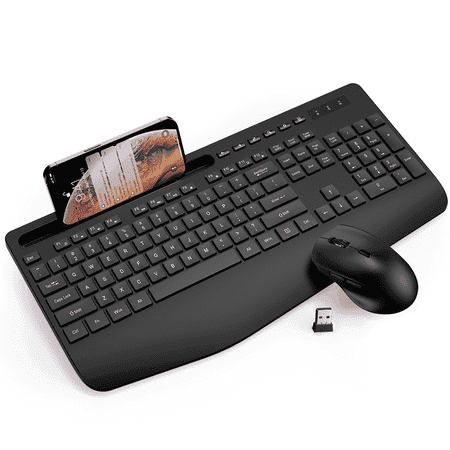
Description: This 2.4G wireless keyboard and mouse combo delivers ergonomic comfort and high efficiency for home, office and study use. Designed with a built-in wrist rest and adjustable tilt legs, it supports natural typing postures and effectively reduces hand and wrist fatigue during...
Best Value Wave Design — Wave Keys Ergonomic Keyboard & Mouse
This wave-shaped keyboard and mouse combo is the most popular ergonomic option under $40 — and with over 200 user reviews averaging 4 stars, it’s the safest bet for most buyers. The wave layout keeps wrists in a more natural position than flat keyboards, and the included palm rest adds support without pressing into the carpal tunnel. Best for Persona 2 (mild carpal tunnel) and Persona 3 (general RSI).
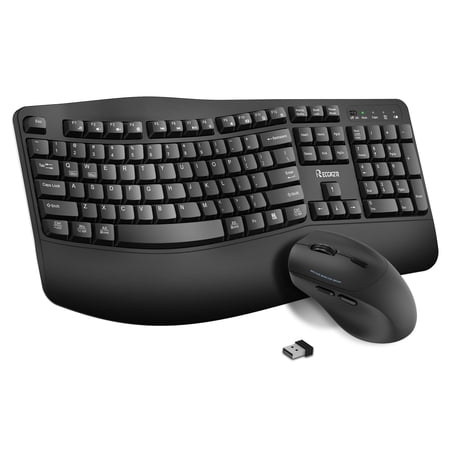
Experience day-long comfort and productivity with this wireless keyboard and mouse combo. Typing feels instantly familiar on Wave Keys’ wavy keyframe design. The cushioned keyboard palm rest lifts pressure and improves wrist support and keyboard wireless connectivity up to 10 meters. The RECCAZR...
Best Premium Ergonomic Combo — Ergonomic Wireless with Phone Holder
This full-featured wireless combo brings Type-C rechargeable convenience, a cushioned wrist rest, a 7.28-inch phone holder built into the keyboard deck, and a silent mouse with adjustable DPI. The 2.4 GHz connection is lag-free and works with both Windows and Mac. At $41.99, it’s the best “everything included” package for someone who wants no compromises on their desk setup. Best for Persona 2 (advanced) and anyone who values a clean, wireless desk.
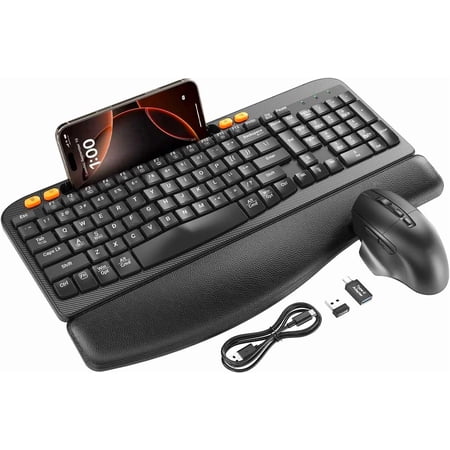
Ergonomic Wireless Keyboard & Mouse Combo - Rechargeable Type-C, Cushioned Wrist Rest, 7.28” Phone Holder, Silent Mouse for Windows/MacUpgrade your workspace with a combo that blends comfort, convenience, and functionality—perfect for home offices, student desks, or professional use! This...
Best for Comfort-First Users — Full-Size Wireless Set with 3-Level DPI
This full-size wave keyboard and mouse combo offers the thickest cushioned palm rest in this price range and a 3-level DPI-adjustable mouse that works on any surface. The USB-A and USB-C dual compatibility means you can use it with older desktops and modern laptops alike. At $44.99, it’s the premium pick for users who want maximum comfort padding and don’t mind a full-size keyboard footprint. Best for Persona 3 (RSI/tendonitis) and heavy typists.
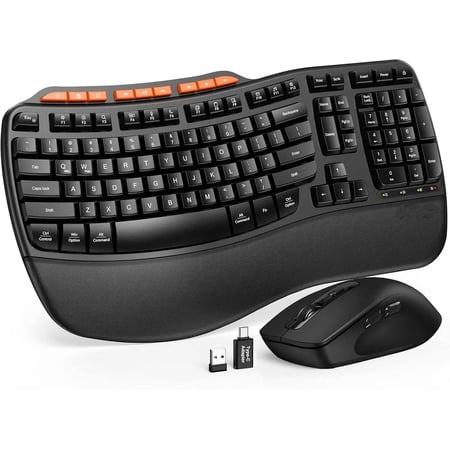
Elevate your workspace with the Ergonomic Wireless Keyboard and Mouse Combo—where premium comfort, cutting-edge design, and universal convenience meet. Designed for the modern professional, remote worker, or student, this set is built to keep up with your busiest days. ✨ Uncompromising Comfort...
Red Flags to Avoid
1. Buying a “Gaming” Ergonomic Keyboard for RSI Relief
Gaming keyboards prioritize speed and RGB lighting over wrist-neutral design. A standard mechanical gaming keyboard with high-activation-force switches (like Cherry MX Blue or Green) will likely make RSI worse, not better. If you need both gaming performance and ergonomic support, look for low-force linear switches and a compact layout that reduces reach. Ignore any “ergonomic gaming” label — it is almost always marketing and nothing more.
2. Thinking One Product Fixes Everything
The most important ergonomic change is often free: adjusting your chair height, monitor position, and posture. A $200 keyboard won’t help if your desk is too high or your chair forces you to slouch. Equipment amplifies good posture; it doesn’t replace it. The Reddit RSI community consistently emphasizes that changing work habits and taking regular breaks matters more than any single purchase.
3. Ignoring the Mouse Entirely
Many buying guides focus only on keyboards, but your mouse is often the bigger culprit for RSI because it keeps your forearm twisted all day. A standard mouse forces forearm pronation that compresses the carpal tunnel. If you only upgrade one thing, start with a vertical mouse — the improvement is often more noticeable than switching keyboards. And don’t overlook your Best Monitor Backlight — proper screen brightness reduces eye strain, which compounds overall fatigue during long workdays.
4. Overspending on Features You Don’t Need
Programmable keys, RGB lighting, software suites, and metal frames add cost without reducing strain. A $30 ergonomic wave keyboard with a cushioned wrist rest delivers the same biomechanical benefit as a $150 split mechanical board for most users. Upgrade only if a standard wave design doesn’t relieve your symptoms after 2–3 weeks of consistent use.
5. Skipping the Trial Period
Ergonomics are personal. A keyboard that works for someone else may not work for you — your hand size, finger length, and specific symptoms all influence what feels right. Buy from retailers with easy returns, and give each setup at least two weeks of exclusive use before judging it. Your muscles need time to adapt to a new typing posture.
Frequently Asked Questions
Can an ergonomic keyboard really help with carpal tunnel?
Yes, but with an important qualification: an ergonomic keyboard reduces the physical stressors that contribute to carpal tunnel syndrome — wrist extension, forearm pronation, and key activation force. A study in the International Journal of Occupational Safety and Ergonomics found that computer professionals who use ergonomic setups report significantly fewer CTS symptoms. However, if you already have advanced carpal tunnel, equipment alone may not be sufficient — consult a specialist for a complete treatment plan.
Should I get a split keyboard or a wave keyboard?
A wave (contoured) keyboard is the best starting point — it’s affordable, requires no setup, and keeps your wrists in a neutral position without the learning curve of a fully split design. If wave keyboards don’t relieve your symptoms after a few weeks, or if you have shoulder pain from narrow typing width, graduate to a split keyboard that lets you position each half independently.
Is a vertical mouse better for carpal tunnel than a trackball?
Both reduce pronation compared to a standard mouse, but they work differently. A vertical mouse keeps your hand in a handshake position while still moving your arm — good for carpal tunnel where wrist rotation is the trigger. A trackball eliminates arm movement entirely, which helps if you have shoulder or elbow pain alongside wrist issues. For carpal tunnel alone, start with a vertical mouse; add a trackball if arm movement remains painful.
How much should I spend on an ergonomic keyboard and mouse setup?
An effective ergonomic setup starts at around $30 for a basic wave keyboard and vertical mouse combo, roughly the same as a standard keyboard and mouse, so there’s no cost barrier to entry. Mid-range options between $35 and $45 add wireless reliability, cushioned rests, and adjustable DPI that make a noticeable difference over a full workday. Beyond $50, you’re paying for build quality, split designs, and premium materials — worthwhile if basic ergonomics don’t resolve your symptoms, but not a requirement for most users. The best strategy is to start at the budget tier and upgrade only if your symptoms persist after two weeks of consistent use.
Can I use an ergonomic keyboard and mouse for gaming?
Yes — most ergonomic combos use 2.4 GHz wireless with polling rates fast enough for casual and competitive gaming. The wave keyboard layout takes a few days to adjust to for WASD movement, but many gamers find it more comfortable for extended sessions. If your main concern is RSI prevention during gaming, look for low-force linear switches and a compact layout with a dedicated vertical gaming mouse.
Conclusion
Relieving RSI and carpal tunnel symptoms doesn’t require a $500 overhaul of your desk or a degree in ergonomics to figure out. Start with the right keyboard and mouse combo for your specific symptoms: a wave-shaped contoured keyboard if you’re new to ergonomics, a vertical mouse if carpal tunnel numbness and tingling keep you up at night, and a split design if a wave board isn’t enough after a few weeks.
The single most important principle is to match the equipment to your condition, not the other way around. Carpal tunnel responds best to vertical mice that eliminate forearm pronation; general RSI benefits most from reduced reaching distances and cushioned palm support; and prevention works fine with even a basic $30 wave combo combined with good desk habits.
Pair any equipment upgrade with proper desk posture: monitor at eye level, elbows at 90 degrees, feet flat on the floor. And take a 5-minute break every hour — seriously, set a timer. Your desk surface itself matters too: Computer Desks With Recessed Monitors can help achieve proper monitor height without neck strain. The products in this guide cover every budget and symptom profile. Pick the one that matches your symptoms, give it two weeks of solid use, and see if your wrists feel better. If they don’t, move up a tier. No brand loyalty required — just honest results. For more on why accessible computing design benefits all users, read Why Accessible Computing Benefits Everyone: The Curb-Cut Effect in Tech.