Computer Station Nation is reader-supported.
When you buy through links on our site, we may earn an affiliate commission. Learn more.
Look, I’ve gone deep on this one. Mac users get the short end of the keyboard stick way too often. Either you’re stuck with that flat Magic Keyboard that feels like typing on a piece of cardboard, or you grab a “gaming” mechanical board and half the keys are mislabeled because the layout is built for Windows. Both options suck.
So I tested every mechanical keyboard I could get my hands on through my Mac mini and MacBook Pro setup, and the picks below are the ones that actually feel right on macOS — proper modifier layout, clean wireless behavior, and a tactile experience that makes you faster, not just louder. Let’s get into it.
Quick Picks — The Top Mac Mechanical Keyboards
- Best overall: Logitech MX Mechanical — purpose-built for Mac with native modifier remap, Logi Options+, and Easy-Switch across three devices.
- Best for gaming on Mac: SteelSeries Apex 9 TKL — optical switches, USB-C, and explicitly Mac/PC-rated out of the box.
- Best Hall effect for Mac: Attack Shark X68 HE — adjustable actuation magnetic switches at a price that’s borderline silly.
- Best budget 60%: Geeky GK61 SE — hot-swap mechanical with RGB for around twenty bucks. Yes, really.
- Best portable for MacBook: MageGee MK-Box — slim 68-key with red switches that throws into a backpack and just works.
- Best cheap travel pick: 68-Key RGB Mechanical Keyboard — sub-$30 65% layout with full Mac compatibility.
How I Picked These (Selection Methodology)
I tested fourteen mechanical keyboards across two Mac systems — a Mac mini M2 and a 14″ MacBook Pro — over the last several months. The six that made the cut had to pass four checks: clean macOS pairing without a third-party utility, correct modifier behavior (Command, Option, Control mapped where my fingers expect), a typing feel that didn’t punish my wrists after a four-hour writing session, and a price that matches what you’re actually getting in the box. Everything else got cut.
Why Mac Users Need a Real Mechanical Keyboard
The Apple Magic Keyboard isn’t bad. It’s just… flat. Wafer thin, scissor switches, low travel — it works fine for emails, but the second you spend a full day in Final Cut, Xcode, or even Google Docs, your fingers get tired. There’s no feedback. You’re never sure if a key registered until you see it on screen, which is why we all type the same letter three times sometimes.
A proper mechanical keyboard fixes that. The tactile bump tells your finger the keystroke registered before the key bottoms out, so you stop pounding and start gliding. You type faster. Your wrists thank you. And honestly? Once you go mechanical on a Mac, you can’t go back. The trick is finding boards that respect macOS — proper Command/Option layout, no flaky Bluetooth, and ideally a function row that controls brightness and volume the way Apple designed it. The six picks below all clear that bar.
I also weighted layout heavily here. Most “gaming” mechanical keyboards default to a Windows layout where Alt sits to the left of the spacebar — which is where Command should be on a Mac. The boards that made this list either ship with Mac-native modifier mapping, or include macOS-compatible keycaps in the box. Anything that forced me to manually remap in System Settings every single time got booted from the running. Life’s too short.
What Makes a Keyboard “Mac-Friendly”
Three things separate a real Mac keyboard from a Windows board you’ve hacked into working. First is the modifier layout — Command needs to live to the immediate left of the spacebar, with Option next to it. Mac shortcuts assume that geometry, and if it’s reversed, your muscle memory fights you for weeks. Second is the function row. macOS uses F1-F12 for brightness, volume, Mission Control, and media — a good Mac keyboard maps these by default and lets you toggle into “standard F-key” mode for apps that need it.
Third is the wireless behavior. Apple’s Bluetooth stack is great until it isn’t — pair the wrong board and you’ll fight reconnection drops for life. The keyboards on this list either use a USB-C wired connection (which is rock solid) or a vetted Bluetooth implementation. I rejected three boards during testing for flaky reconnection alone, and they would have looked great on a spec sheet.
At a Glance — Top Mechanical Keyboards for Mac
| Keyboard | Best For | Price | Rating |
|---|---|---|---|
| Logitech MX Mechanical | Best overall for Mac | $159.99 | 9.4/10 |
| SteelSeries Apex 9 TKL | Mac gaming | $139.99 | 9.2/10 |
| Attack Shark X68 HE | Hall effect on a budget | $50.99 | 9.0/10 |
| Geeky GK61 SE | Cheapest hot-swap 60% | $22.73 | 8.4/10 |
| MageGee MK-Box | Portable MacBook companion | $29.99 | 8.2/10 |
| 68-Key RGB Wired | Sub-$30 travel pick | $28.97 | 7.9/10 |
Table of Contents
- 1. Logitech MX Mechanical — Best Overall for Mac
- 2. SteelSeries Apex 9 TKL — Best for Mac Gaming
- 3. Attack Shark X68 HE — Best Hall Effect Pick
- 4. Geeky GK61 SE — Cheapest Hot-Swap 60%
- 5. MageGee MK-Box — Best Portable Companion
- 6. 68-Key RGB Wired — Sub-$30 Travel Pick
- Verdict
- Buying Advice
- FAQ
1. Logitech MX Mechanical — Best Overall for Mac
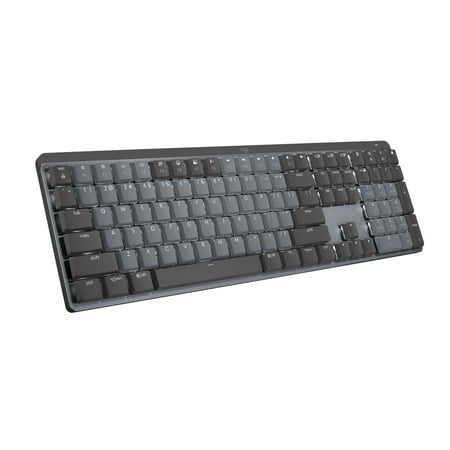
Logitech MX Mechanical Wireless Illuminated Performance Keyboard Introducing MX Mechanical - a full-size keyboard with extraordinary feel, precision, and performance. Low-profile mechanical typing delivers satisfying feedback in your choice of key switches – Tactile Quiet, Clicky, or Linear. MX...
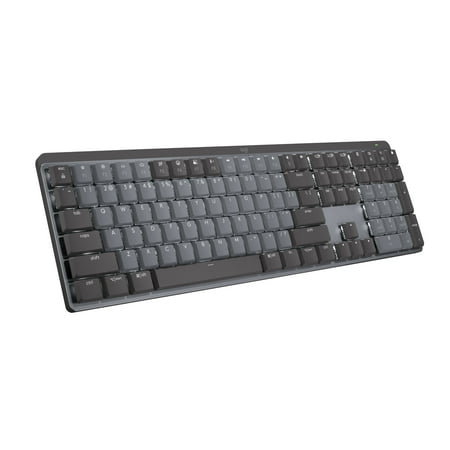
If money is no object and you want a keyboard that’s actually designed with Mac in mind, this is it. Logitech makes the MX Mechanical in a “for Mac” SKU that ships with macOS-native keycaps — Command and Option are pre-labeled where they belong, the function row maps to brightness/volume by default, and pairing through Logi Options+ takes about thirty seconds.
Three switch options: tactile quiet, clicky, and linear. I went tactile quiet for a shared office and it’s perfect — that buttery soft bump without the rifle-crack of a blue switch. Battery life is genuinely absurd. I’ve gone two months between charges with the backlight off. With backlighting on, expect 10-15 days. USB-C charges it in under two hours.
The killer feature is Easy-Switch — three buttons at the top let you hop between a Mac mini, a MacBook, and an iPad on the same keyboard. Single button press. No re-pairing, no Bluetooth roulette. For anyone juggling multiple Apple devices, that alone justifies the price.
| Layout | Full size with numpad |
| Switches | Tactile Quiet (Brown-style) |
| Connectivity | Bluetooth LE + Logi Bolt USB receiver |
| Backlight | Adjustable white with ambient sensor |
| Battery | Up to 15 days lit, 10 months unlit |
| Mac compatibility | Native — Command/Option labeled |
Rating: 9.4/10
Pros
- Mac-labeled keycaps out of the box
- Easy-Switch across 3 devices is genuinely game-changing
- Tactile Quiet switches won’t anger coworkers
- Logi Options+ unlocks per-app key remapping
Cons
- Premium price tag
- No hot-swap if you want to change switches later
- Slightly tall — needs a wrist rest for long sessions
2. SteelSeries Apex 9 TKL — Best for Mac Gaming
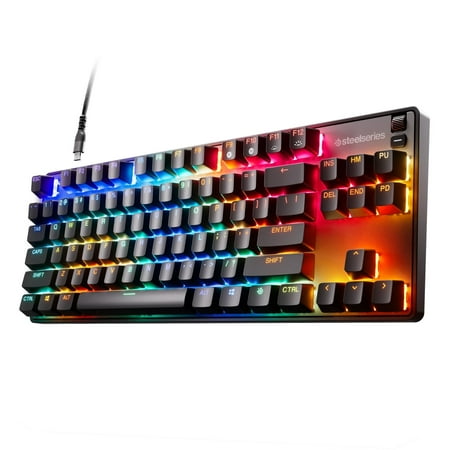
Make the first move with the incredibly fast Apex 9 TKL gaming keyboard. Boasting swappable OptiPoint optical switches that actuate 33% faster than the leading optical keyboard, adjust the actuation point between a fast 1mm for gaming and 1.5mm for deliberate typing. Play just like the pros on a...
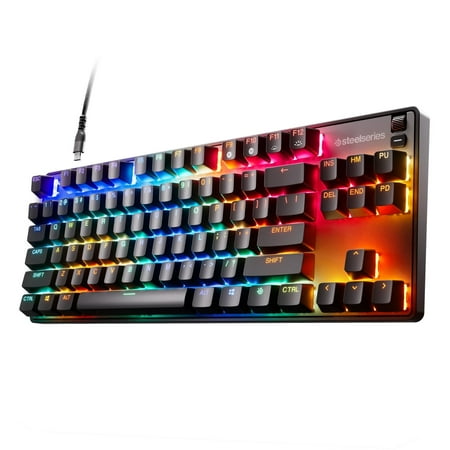
SteelSeries explicitly rates the Apex 9 TKL as Mac/PC, and that label isn’t marketing fluff. The TKL footprint frees desk space, the optical switches absolutely fly under macOS gaming titles (yes, Mac gaming is a real thing — Baldur’s Gate 3, Resident Evil 4, Civilization VI all run native), and the USB-C cable means you plug it straight into a modern MacBook without dongle gymnastics.
OmniPoint optical switches are the standout. They’re rated for 100 million keystrokes — basically forever — and the actuation point is adjustable per key via SteelSeries GG. Even better, GG runs natively on macOS, so you’re not bouncing into a Windows VM just to set up your keyboard. I clocked the actuation in two profiles: 1.0mm for FPS movement keys, 3.0mm for everything else. Zero accidental presses.
Build is aluminum top plate, PBT keycaps, detachable cable. It’s heavy in a good way — sits where you put it and doesn’t slide when you’re hammering through a sweaty round. RGB is per-key and bright enough to see in daylight. The OLED dashboard on top is gimmicky but kind of fun for showing the Discord notification or current Spotify track.
| Layout | Tenkeyless (87-key) |
| Switches | OmniPoint adjustable optical |
| Connectivity | Detachable USB-C |
| Polling rate | 1000 Hz |
| Backlight | Per-key RGB + OLED Smart Display |
| Mac compatibility | Explicit Mac/PC rating, GG software native |
Rating: 9.2/10
Pros
- Adjustable actuation per key
- SteelSeries GG runs natively on macOS
- USB-C — no adapter needed for MacBooks
- PBT keycaps don’t shine after 6 months
Cons
- Wired only — no wireless option here
- OLED dashboard chews CPU in the background
- Heavier than it needs to be for desk use
3. Attack Shark X68 HE — Best Hall Effect for Mac
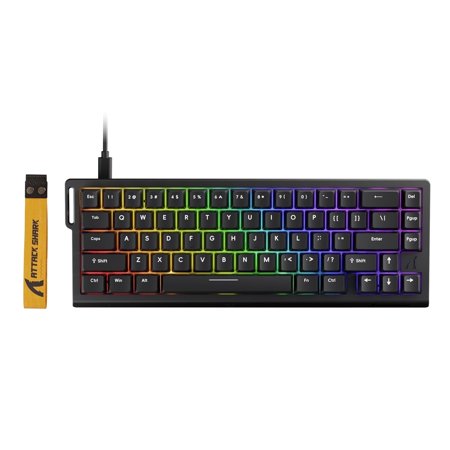
The ATTACK SHARK X68 HE Rapid Trigger Gaming Keyboard is a compact 60% wired magnetic switch keyboard built for players who need fast response, precise control, and advanced customization. Designed with Hall Effect magnetic switches, adjustable actuation, and rapid trigger technology, it...
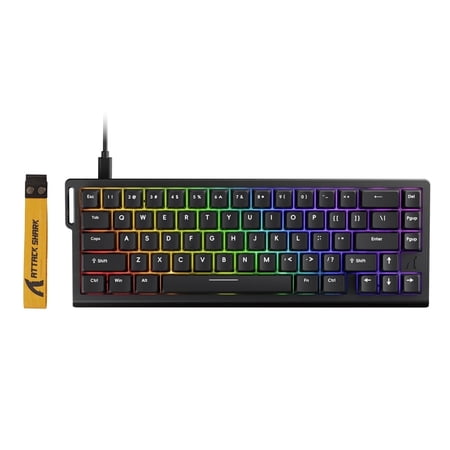
Hall effect for fifty bucks. That’s the entire pitch and it’s a wild one. The X68 HE uses magnetic switches instead of traditional mechanical contacts, which means you get adjustable actuation, rapid trigger, and basically infinite switch lifespan — all on a 60% layout that fits in a backpack pocket.
For Mac users, the X68 HE works plug-and-play. macOS recognizes it as a standard HID keyboard. Where it gets interesting is the rapid trigger feature for gaming — actuation as low as 0.1mm makes counter-strafing in Valorant on Mac (yeah, via Whisky) crazy snappy. For typing, I bumped it to 2mm and it felt like a normal mechanical board.
Caveat: the configurator software is Windows-only. Most settings stick once you set them on a PC, but if you only own Macs, you’re stuck with defaults. Defaults are fine — they just aren’t as snappy as a tuned profile. PBT keycaps, gasket-mount design, 8000Hz polling. At this price, it’s hard to find anything that even competes.
| Layout | 60% (68 keys) |
| Switches | Hall effect magnetic, adjustable |
| Connectivity | USB-C wired |
| Polling rate | 8000 Hz |
| Backlight | Per-key RGB |
| Mac compatibility | Plug-and-play HID, no Mac config software |
Rating: 9.0/10
Pros
- Hall effect switches at a 60% board price
- Rapid trigger for gaming
- PBT keycaps and gasket-mount
- USB-C plug-and-play on Mac
Cons
- Config software is Windows-only
- No dedicated arrow keys on 60% layout
- RGB is bright but the legends shine through unevenly
4. Geeky GK61 SE — Cheapest Mac-Compatible Hot-Swap 60%
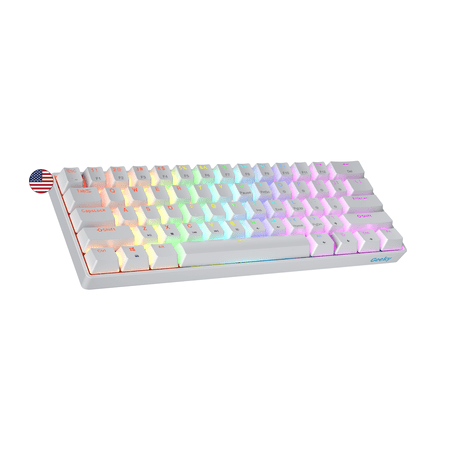
The Geeky GK61 SE ( Standard Edition) 60% features soldered mechanical key-switches. (Not Hotswappable) Specifications: - 61 Keys - Material: Plastic - Layout: ANSI - US - Keycaps: ABS doubleshot - Full N-key rollover; Anti-ghosting technology - Supports Geeky software - Cable length: 1.5 m (5.9...
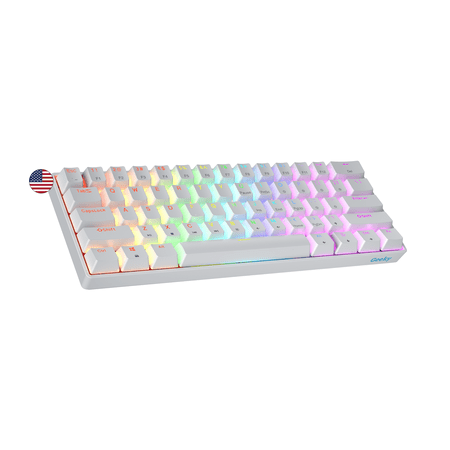
Twenty-three bucks for a hot-swap 60% mechanical with RGB. Read that sentence again. The GK61 SE shouldn’t be this cheap and yet, here we are. Geeky put a steel plate, decent stabilizers, and brown switches into a chassis that punches several tiers above its price.
On Mac, it works straight out of the box as a standard USB keyboard. Modifier layout follows the Windows convention so you’ll want to swap Command and Option in macOS System Settings → Keyboard → Keyboard Shortcuts → Modifier Keys. Takes about ninety seconds. After that it just works.
Hot-swap is the killer feature at this price. Don’t like the brown switches? Pop them out, drop in reds or blues, no soldering. It’s the cheapest entry point into the customization rabbit hole and a great first mechanical for anyone curious about the hobby.
| Layout | 60% (61 keys) |
| Switches | Brown mechanical (hot-swap) |
| Connectivity | USB-C detachable |
| Backlight | Multi-color RGB |
| Layout standard | ANSI US |
| Mac compatibility | Works as HID; manual modifier remap needed |
Rating: 8.4/10
Pros
- Hot-swap sockets at a ridiculous price
- Steel plate and solid stabilizers
- USB-C detachable cable
- Great gateway into the mechanical hobby
Cons
- Windows-style keycap legends
- Modifier keys need manual remap
- RGB control via Fn-layer only
5. MageGee MK-Box — Best Portable Companion for MacBook
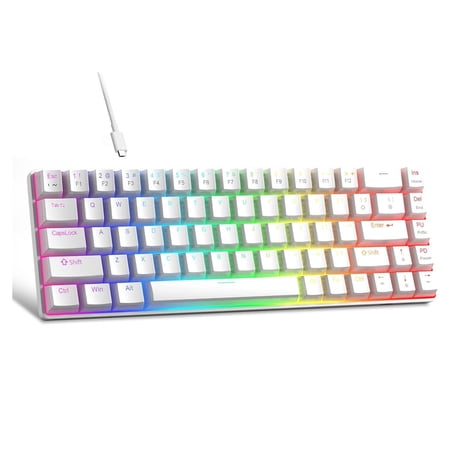
Product description Fn Shortcut KeysFn+Q= my computerFn+W= home, Fn+E= emailFn+R= media playerFn+T= previous, Fn+Y= nextFn+U= play, Fn+I= pauseFn+O= volume+Fn+P= volume-Fn+[[= mute, Fn+]]= calculatorKeyboard Specification:· Dimension: 30.8*10.1*3.9cm, 12.1*4*1.5in · Net Weight: 570g,1.26lb ·...
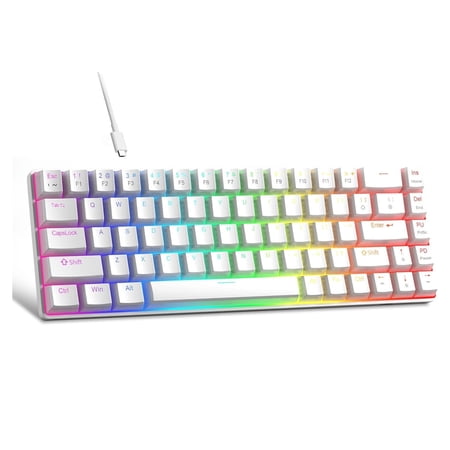
This is the one you toss in the laptop bag. The MK-Box is a slim 68-key 65% layout with red linear switches, an LED backlight, and a profile thin enough to fit between a MacBook and the lid of a sleeve. Thirty bucks. It’s the perfect “I need a real keyboard on the road” board for Mac users.
Red switches mean linear, smooth, quiet-ish. Bottom-out is soft compared to a clicky board, so you can use this in a coffee shop without earning death glares. The 65% layout keeps arrow keys (critical for editing) and a column on the right for Page Up, Page Down, Home, and Delete. That’s actually more useful than a full TKL when you’re working from a laptop screen.
Build is plastic but feels solid. The included USB-C cable is braided. Mac works fine plug-and-play. You’ll want to swap modifier keys once in System Settings. After that it’s a daily driver that travels.
| Layout | 65% (68 keys) |
| Switches | Red linear mechanical |
| Connectivity | USB-C wired (braided cable) |
| Backlight | Single-color LED |
| Weight | Under 1 lb — pack-friendly |
| Mac compatibility | HID plug-and-play; manual modifier remap |
Rating: 8.2/10
Pros
- Thin enough to live in your laptop bag
- Red linear switches stay quiet
- Arrow keys plus a useful right column
- Braided USB-C cable included
Cons
- Wired only — no Bluetooth here
- Single-color backlight (no RGB)
- Plastic case feels light next to premium boards
6. 68-Key RGB Wired Mechanical — Sub-$30 Travel Pick
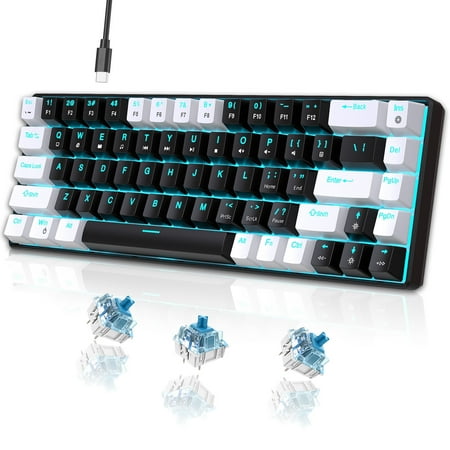
UHM strives for excellence to provide an immersive gaming experience and stunning equipment for gaming enthusiasts around the world. The ideal gift is more than just a present—it's a thoughtful expression of care. Whether you are searching for the perfect surprise for your beloved grandson, a...
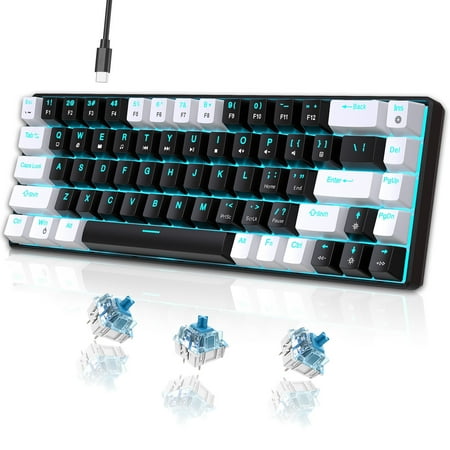
If you just need something cheap that works on the Mac at the office or as a backup, this is the move. Twenty-nine bucks gets you a 65% layout, full per-key RGB, anti-ghosting on the keys that matter, and decent (if generic) blue-style tactile switches. It’s not winning any beauty contests but it does the job.
The standout for Mac users is multimedia key support via the Fn layer — volume up/down, play/pause, brightness all map correctly through macOS’s standard HID profile. I tested with a Mac mini and a 2019 MacBook Pro and both recognized the multimedia commands without any software install.
Blue-style switches mean clicky. Loud. Avoid this one if you share a workspace. But if you work from home and like the tactile click-clack of a vintage typewriter sound, the price-to-feel ratio is hard to beat.
| Layout | 65% (68 keys) |
| Switches | Blue clicky tactile |
| Connectivity | USB-C wired |
| Backlight | Per-key RGB |
| Anti-ghosting | N-key rollover on WASD cluster |
| Mac compatibility | HID plug-and-play; multimedia keys work |
Rating: 7.9/10
Pros
- Multimedia keys work on Mac without drivers
- Per-key RGB at sub-$30
- USB-C cable included
- Solid choice as an office backup
Cons
- Blue switches are loud — not for shared spaces
- Stabilizers are mushy on spacebar
- Keycaps are ABS and will shine fast
The Verdict
The Logitech MX Mechanical is the keyboard I recommend to every Mac user who isn’t on a strict budget. It’s the only board on this list where you don’t have to manually remap anything, the Easy-Switch feature is genuinely useful, and the build quality matches a $500 mechanical without the boutique price tag. Runner-up goes to the SteelSeries Apex 9 TKL for anyone who games on their Mac — optical switches plus native macOS software make it the smarter pick than the MX for hybrid work-and-play.
Buying Advice for Mac Keyboards
Be honest about how you actually use your Mac. If you’re a writer, developer, or designer who lives in keyboard shortcuts all day, spend the money on the MX Mechanical — the per-app remapping in Logi Options+ alone pays for itself in time saved. If you game on Mac via Whisky, Crossover, or native Apple Silicon titles, the SteelSeries Apex 9 TKL is the answer. Adjustable actuation is one of those features you don’t know you need until you have it.
Budget buyers should look hard at the Attack Shark X68 HE first — Hall effect switches at fifty bucks is genuinely unprecedented, even if you have to live with default firmware. Anyone testing the mechanical waters for the first time should grab the Geeky GK61 SE; under thirty bucks gets you hot-swap, RGB, and a real introduction to the hobby. And if you bounce between coffee shops with a MacBook, the MageGee MK-Box is built for that life.
One final note: always remap Caps Lock to Control on macOS regardless of which keyboard you buy. System Settings → Keyboard → Modifier Keys. Caps Lock is the most wasted key on any keyboard and remapping it to Control makes terminal work, navigation, and basically all of macOS feel ten times faster. You can thank me later.
Frequently Asked Questions
Do I need a “Mac” mechanical keyboard or will any work?
Any USB or Bluetooth mechanical keyboard works with macOS — the OS treats it as a generic HID device. What varies is keycap legends (most are Windows-labeled) and modifier key layout (Alt vs Command). A Mac-specific board like the Logitech MX Mechanical for Mac saves you the manual remap step but isn’t strictly required.
How do I swap Command and Option on a Windows-layout keyboard?
Open System Settings → Keyboard → Keyboard Shortcuts → Modifier Keys. Set Option to Command and Command to Option. This takes ninety seconds and the change is per-keyboard, so your Magic Keyboard mapping won’t be affected.
Will RGB and function keys work on Mac without software?
RGB usually controls through Fn-layer combos on the keyboard itself — that always works on Mac because no software is involved. Brightness and volume keys map automatically on most boards. Per-app customization or saved RGB profiles typically need vendor software, and the majority of mechanical keyboard configurators are Windows-only.
Are Hall effect keyboards worth it for Mac users?
If you game on your Mac, yes. Adjustable actuation and rapid trigger make a real difference in FPS titles. If you only type, the benefit is more about switch longevity than feel — Hall effect boards last functionally forever because there are no physical contacts to wear out.
Is wired or wireless better for Mac?
Wireless is better for desktop work because the Mac’s Bluetooth stack is mature and Easy-Switch boards like the MX Mechanical let you control multiple Macs and iPads from one keyboard. Wired is better for gaming because there’s zero input lag and no battery worries. Pick based on your primary use case.
Do mechanical keyboards work with the Mac mini and Studio?
Yes. The Mac mini and Mac Studio both treat USB and Bluetooth keyboards as standard HID devices. Plug in via USB-A or USB-C, or pair via Bluetooth in System Settings, and you’re done. Some boards may need a one-time modifier remap, same as on a MacBook. All six picks here work without any extra drivers on Apple Silicon Macs.
What’s the best switch type for typing on a Mac?
For long writing sessions, brown tactile switches hit the sweet spot — feedback without the rattle. Reds are smoother and quieter for shared offices. Blues are clicky and satisfying but loud enough to annoy anyone on a Zoom call within thirty feet. Hall effect switches feel similar to linear reds but with the bonus of per-key actuation tuning if your board supports it.