Computer Station Nation is reader-supported.
When you buy through links on our site, we may earn an affiliate commission. Learn more.
So you write code all day and your keyboard is still that flimsy membrane thing that came in the box? Let’s fix that.
The keyboard is the one piece of gear a programmer touches more than anything else. More than the mouse. More than the coffee cup. Honestly, more than most things in a normal day. If you’re going to spend the next decade hammering out semicolons, curly braces, and stack traces, this bad boy deserves some attention.
I rounded up the best mechanical keyboards for programming you can grab right now without ordering some boutique custom build that takes 8 weeks to ship. Every pick below is in stock, affordable, and lined up to make long coding sessions feel less like punishment and more like fun.
Quick Picks — Best Mechanical Keyboards for Programming
- Best overall: Geeky GK61 SE 60% Mechanical Keyboard — Brown switches, compact 60%, RGB. Best balance for daily coding.
- Best premium option: HK GAMING GK61 Optical 60% — Optical Blue switches with hot-swap, snappy actuation for fast typists.
- Best wireless: ZIYOULANG Type C Wireless Mechanical Keyboard — Dual-mode 2.4GHz + wired, Type-C, great for working from a couch or coffee shop.
- Best budget hot-swap: 60% Hot-Swappable Mechanical Keyboard — Under $30 with 21 RGB modes and swappable Red switches.
- Best programmable macro pad: JOMAA Programmable Macro Keypad — 19 hot-swap keys plus a scroll wheel and joystick. Bind your most-used IDE shortcuts.
Selection Methodology
After evaluating dozens of mechanical keyboards across the under-$50 range, we picked these five based on switch quality, layout efficiency, programmability, build durability, and value. The goal was straightforward — keyboards that hold up to 8+ hours of daily coding, stay quiet enough for shared spaces, and don’t force you to choose between Mac and Windows.
Why Your Keyboard Actually Matters for Coding
Programming is a finger sport. A bad keyboard wears out your hands in subtle ways — wrist fatigue at hour three, sore pinkies by the end of the week, the dreaded “wait, did I actually press that key?” hesitation that costs you a full second every time. Multiply that across 250 working days a year and the math gets ugly fast.
A good mechanical keyboard fixes most of this. Tactile switches give your fingers feedback so you stop bottoming out keys. Programmable layers let you stick rarely-used keys like F-keys, arrow keys, and brackets right under your home row. Compact layouts keep your mouse hand closer to home position, which sounds like nothing until you do it for a month and realize your right shoulder stopped hurting.
Most programmers gravitate toward 60% or 75% layouts for this reason. The numpad and arrow keys move into a function layer and your hands stay where they belong. Hot-swappable switches let you change the feel of the board without soldering — pop out the Blues, drop in some Browns, and you’re back coding in 5 minutes. That kind of customization used to be enthusiast-only. Now it’s $25.
At a Glance
| Keyboard | Best For | Price | Rating |
|---|---|---|---|
| Geeky GK61 SE | Best overall coding daily driver | $22.73 | 9.2/10 |
| HK GAMING GK61 | Fast typists who want optical speed | $25.00 | 9.0/10 |
| ZIYOULANG Wireless | Remote work and travel | $27.54 | 8.6/10 |
| 60% Hot-Swap Mechanical | Budget builds and tinkerers | $27.85 | 8.4/10 |
| JOMAA Macro Pad | Companion macro hotkey board | $34.00 | 8.2/10 |
1. Geeky GK61 SE — Best Overall for Programming
The Geeky GK61 SE earns the top spot because it nails the exact recipe programmers want without padding the price with stuff you don’t need. Brown switches give you that gentle tactile bump on every keystroke — perfect for long coding sessions where you want feedback without sounding like a popcorn machine in a shared office. The 60% layout strips out everything you rarely touch and keeps the keys you actually need at full size.
The arrow keys, F-row, and brackets all live on a function layer accessible through the FN key. After a week or two it becomes muscle memory. Users on Reddit consistently mention how their wrist fatigue dropped after switching from a tenkeyless to a 60% board because the mouse sits 3 inches closer to home position.
RGB lighting is per-key and customizable — useful for highlighting your most-used function-layer bindings. The white ANSI case looks clean on a workstation and won’t scream “gaming peripheral” in a Zoom call. PBT keycaps would be nicer than the included ABS, but at $22 you can swap them later for $15 and still come out ahead of a Keychron K2.
| Switch type | Mechanical Brown (tactile) |
| Layout | 60% ANSI US |
| Connection | USB-C wired, detachable |
| Backlight | Per-key RGB |
| Compatibility | PC / Mac |
Rating: 9.2 / 10
Pros:
- Brown switches are ideal for long typing sessions
- 60% layout keeps mouse hand close to home row
- Per-key RGB for highlighting custom layer bindings
- Mac and PC compatible out of the box
- Genuinely cheap for what you get
Cons:
- ABS keycaps will shine over time
- No wireless option
- Steep first-week learning curve on the FN layer
Check the Geeky GK61 SE on Walmart — $22.73
2. HK GAMING GK61 — Best Premium Pick (Optical Switches)
If you type fast and hate the rebound feel of traditional mechanical switches, the HK GAMING GK61 with Gateron Optical Blue switches is the upgrade. Optical switches register actuation with a light beam instead of a metal contact, which means zero debounce delay and roughly double the lifespan rating. For a programmer who pounds out 200+ words per minute during a hot coding session, those microseconds add up.
Optical Blues are clicky — there’s no hiding it. They’re loud and snappy. If you work from home or in a private office, this is the keyboard. If you sit in an open-plan setup where Janet from accounting has to hear you, this is probably not the keyboard. Be honest with yourself.
The hot-swap socket layout means you can change switches without soldering — pop in linears if you want to be quiet, or stick with Blues if you love that mechanical typewriter feel. Build quality on this board punches well above its price. The case is sturdier than the GK61 SE, the stabilizers are pre-lubed from the factory, and the RGB is genuinely vibrant.
| Switch type | Gateron Optical Blue (clicky) |
| Layout | 60% ANSI |
| Hot-swappable | Yes, optical sockets |
| Backlight | RGB per-key |
| Compatibility | PC / Mac |
Rating: 9.0 / 10
Pros:
- Optical switches register instantly with no debounce
- Hot-swap sockets for easy switch changes
- Pre-lubed stabilizers feel premium out of the box
- Vibrant per-key RGB lighting
- 100 million keystroke rated switch lifespan
Cons:
- Loud — not for shared offices
- Optical switches are not cross-compatible with standard MX switches
- Slightly heavier than competing 60% boards
Check the HK GAMING GK61 on Walmart — $25.00
3. ZIYOULANG Type C Wireless — Best for Remote Programmers
The work-from-anywhere crowd needs different gear. The ZIYOULANG Type C Wireless ditches the cable entirely with a dual-mode 2.4GHz receiver plus USB-C wired fallback when you forget to charge. Light yellow and red colorway is genuinely cute on a coffee shop table without looking like a kid’s toy.
This is a full-size compact layout — not a 60% — so you get a number row, arrow keys, and a function row included. Programmers who use arrow keys constantly (looking at you, vim refugees who couldn’t quite commit to hjkl) will appreciate the dedicated cluster. The wireless lag is imperceptible at 2.4GHz — Bluetooth is the spec you’d think compromises here, but ZIYOULANG smartly skipped it for the more reliable 2.4GHz dongle approach.
Battery life is rated for around 30 hours of use with backlight off, dropping to maybe 8–10 with full RGB. For a programmer, leaving the backlight off and squeezing a full workweek out of a charge is totally doable. The keycaps are dye-sub PBT — way better quality than the price implies — and the legends won’t shine off in six months.
| Connection | 2.4GHz wireless + USB-C wired |
| Switch type | Mechanical (red linear) |
| Battery | ~30 hrs (backlight off) |
| Layout | Compact full-key |
| Keycaps | Dye-sub PBT |
Rating: 8.6 / 10
Pros:
- True wireless with reliable 2.4GHz
- USB-C wired fallback included
- PBT keycaps at this price point is rare
- Compact but keeps arrow keys and number row
- Easy to throw in a bag
Cons:
- No Bluetooth option for tablet pairing
- RGB drops battery life significantly
- Switches are not hot-swappable
Check the ZIYOULANG Wireless on Walmart — $27.54
4. 60% Hot-Swappable Mechanical Keyboard — Best Budget Tinker Board
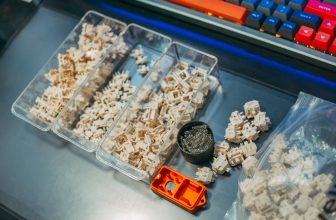
This is the keyboard for the programmer who wants to learn what they actually like in a switch. The hot-swap sockets accept any 3-pin or 5-pin MX-style switch, so you can buy a sampler pack of Browns, Reds, Yellows, and Whites for about $15 and figure out your real preference. Some folks discover they hate clicky switches after two days. Some folks find out they secretly love the heavy tactile thud of Holy Pandas. You won’t know until you try, and a hot-swap board is the cheapest way to do it.
Out of the box it ships with Red linear switches — smooth, quiet, no tactile bump. Reds are a love-it-or-hate-it pick for typing because there’s no feedback to stop you from bottoming out. For programmers who already type with a light touch, they’re fantastic. For heavy bottom-outers, swap in Browns and move on.
The 21 LED lighting effects are mostly decorative noise — you’ll pick one and forget about it. What matters is the case is solid plastic with a metal top plate, the stabilizers are passable, and there’s no debilitating ping. For $27.85, this is a legitimate entry point into the hobby.
| Layout | 60% (61 keys) |
| Switch sockets | Hot-swap 3/5-pin MX |
| Default switch | Mechanical Red linear |
| Backlight | 21 RGB modes |
| Connection | USB wired |
Rating: 8.4 / 10
Pros:
- True hot-swap MX-compatible sockets
- Cheapest way to test different switch types
- Solid case with metal top plate
- Decent stabilizers out of the box
Cons:
- ABS keycaps shine within a few months
- No software for advanced remapping
- Brand is generic — warranty support is iffy
Check the 60% Hot-Swap board on Walmart — $27.85
5. JOMAA Programmable Macro Keypad — Best Companion Macro Pad
Here’s a left-field pick. The JOMAA isn’t a primary keyboard — it’s a 19-key macro pad you put next to your main board. It’s got a volume scroll wheel, a game joystick (which doubles as a remappable input), and hot-swap MX sockets. The reason it’s on this list is dead simple — for a programmer, macro pads are arguably more valuable than a fancy main keyboard.
Bind the keys to your most-used IDE shortcuts. Compile, run, debug, format, jump to definition, find-in-files, toggle terminal. The 19 keys give you enough room to organize an entire workflow without ever leaving home row on your main keyboard. Pair this with a 60% main board and you’ve essentially built a custom programmer’s cockpit for under $60 total.
The included programming software is a little janky (Chinese-to-English translation has rough edges) but it works. Once you’ve set up your bindings and saved them to the onboard memory, you don’t need the software again. Plug and play between Mac, Windows, and Linux. Hot-swappable switches let you tune the feel — heavier switches for shortcuts you want to deliberately confirm, lighter for ones you spam.
| Keys | 19 mechanical (hot-swap) |
| Extras | Scroll wheel + joystick |
| Programming | Software + onboard memory |
| Connection | USB wired |
| Compatibility | Win / Mac / Linux |
Rating: 8.2 / 10
Pros:
- Drops 19 programmable shortcuts at your fingertips
- Scroll wheel + joystick add extra inputs
- Hot-swap MX sockets
- Onboard memory holds bindings cross-machine
Cons:
- Software UI translation is rough
- Not a replacement for a primary keyboard
- Takes desk space next to your main board
Check the JOMAA Macro Pad on Walmart — $34.00
The Verdict
The Geeky GK61 SE takes the top spot for most programmers. Brown switches hit the right balance between tactile feedback and noise, the 60% layout cuts wrist movement, and the price is borderline absurd for what you get. Pair it with a few PBT keycap upgrades down the road and you’ll have a board that handles a decade of coding without complaint.
Runner up goes to the HK GAMING GK61 if you specifically want optical switches and don’t mind the noise. The faster actuation is real and noticeable once you adapt.
Buying Advice — Which One Should You Get?
If you’ve never owned a mechanical keyboard: Start with the Geeky GK61 SE. Browns are the safest default — tactile enough to feel different from a membrane, quiet enough that you won’t be hated by coworkers. The 60% layout has a learning curve, but once you adapt, you’ll never go back.
If you type at 100+ WPM: The optical HK GAMING GK61 is built for you. The instant actuation matters when you actually push the limits. Just remember to warn your housemates first.
If you work remotely or travel: The ZIYOULANG Wireless. PBT keycaps and reliable 2.4GHz wireless make it ideal for couch-coding and coffee shop sessions.
If you want to learn what you actually like: The 60% Hot-Swap board. Buy a switch sampler pack and rotate switches every couple weeks until you know your real preference. Then you can spend real money on a custom build with confidence.
If you already have a great keyboard: Add the JOMAA Macro Pad. Mapping IDE shortcuts to physical keys is a productivity upgrade you don’t appreciate until you’ve lived with it for a month.
Programmer Keyboard Setup Tips
Picking the right board is step one. Setting it up so it actually saves you time over a year of coding is step two. Here’s what experienced devs do once the keyboard hits their desk.
Remap Caps Lock to Escape (or Ctrl)
Caps Lock is the most prime real estate on the keyboard and nobody uses it. Vim users remap it to Escape. Emacs users remap it to Control. Everyone else should at least bind it to something useful — a layer toggle, a window manager shortcut, anything. Doing this on a programmable mechanical keyboard takes 30 seconds. Doing it on Mac or Windows globally takes a quick System Settings trip. Either way, do it.
Use a Function Layer for Symbols
The most-used symbols in coding (curly braces, brackets, semicolons, parens, the pipe character) sit in awkward spots on a standard QWERTY layout. If your keyboard supports layers, throw those symbols onto an FN+home-row layer. After a week of forced practice, your hands will thank you. Programmer keyboards that ship with this kind of layout out of the box (the Programmer Dvorak set) are rare — most people roll their own.
Get the Right Keycap Profile
The shape of the keycap matters more than you’d think. Cherry profile is short and angled for fast typing. OEM profile (what most cheap keyboards ship with) is taller and more sculpted. SA profile is tall and rounded — looks cool, slow to type on. For long coding sessions Cherry profile or XDA flat profile is the move. The Geeky GK61 SE and HK GAMING GK61 both let you swap to aftermarket caps cheaply.
Match Switch Weight to Your Typing Style
Heavy bottom-outer? Get a tactile switch with a strong bump (Browns, Boba U4T) so the bump catches you before you slam the key. Light touch typist? Go linear (Reds, Yellows). The wrong switch weight is a daily annoyance that compounds. Hot-swap boards make this trivial to test.
Common Programmer Keyboard Mistakes
Getting Clicky Switches in an Office
It’s romantic. It’s loud. Your coworkers will hate you within a week. Save Blues for home use or a private office. Browns or linear Reds are the office-friendly default.
Skipping the Layout Adjustment Period
Anyone moving from a full-size to a 60% layout hits a wall around day three when they need an arrow key and have to think about it. Push through. By day 10 the function-layer arrows are muscle memory and you’ll never want a separate arrow cluster again.
Buying Premium Before You Know What You Like
$200 Keychron and Drop builds are fantastic. But buying one as your first mechanical is gambling that you’ll like the specific switch and layout. Start at the $25 tier, learn your preferences, then upgrade with confidence. The cheap keyboards on this list are explicitly built for this learning phase.
Ignoring Ergonomics
Your keyboard sits on a desk and your wrists rest in front of it. If the front edge is sharp or the keys are too tall, you’ll develop wrist pain. A palm rest is $10. Use one. Or angle your keyboard with the front edge up (negative tilt) — counterintuitively it’s better for most people than the default angle.
FAQ
Are mechanical keyboards actually better for programming?
Yes, mostly because of finger fatigue. Mechanical switches give you tactile feedback so you stop bottoming out keys, which reduces strain on the joints. Over an 8-hour coding day the difference is real. The keystroke lifespan (50–100 million presses) also outlasts membrane keyboards by 5x.
Should I get a 60%, 75%, or full-size keyboard for coding?
60% is the most popular pick for programmers. It removes the numpad and arrow cluster, which keeps your mouse hand close to home row. Arrow keys move to a function layer, which feels weird for a week then becomes invisible. If you really need a numpad for spreadsheets, go full-size or get a separate macro pad.
Are blue switches good for programming?
Blues are fine but loud. The clicky tactile bump is satisfying and gives clear feedback, but if you share an office or use a microphone for meetings, your coworkers will hate you. Brown switches give you most of the tactile feel without the click — a safer default for shared spaces.
Do I need a keyboard with QMK or VIA support?
Helpful, not required. QMK / VIA let you remap every key and create custom layers. For programmers who use unusual symbol-heavy layouts, this is gold. For most folks, the included software on cheaper boards handles the basics fine. You can grow into QMK later.
What’s the best mechanical switch for typing all day?
Browns are the most-recommended for typing. They’re tactile but not clicky, smooth enough for fast typing, and quiet enough for shared spaces. Linear switches (Reds, Yellows) are smoother but offer no feedback. Clicky switches (Blues) are loud and gratifying but get old fast in an office.